

This guide shows how to install the Iptanus File Upload plugin and start using it. If the plugin is already installed, go straight to step 2.
Step 1 — installing the free version
- Install it as you would any other plugin. Go to Dashboard → Plugins → Add New and type “Iptanus File Upload” in the search box. It appears as the first result. Press Install Now.
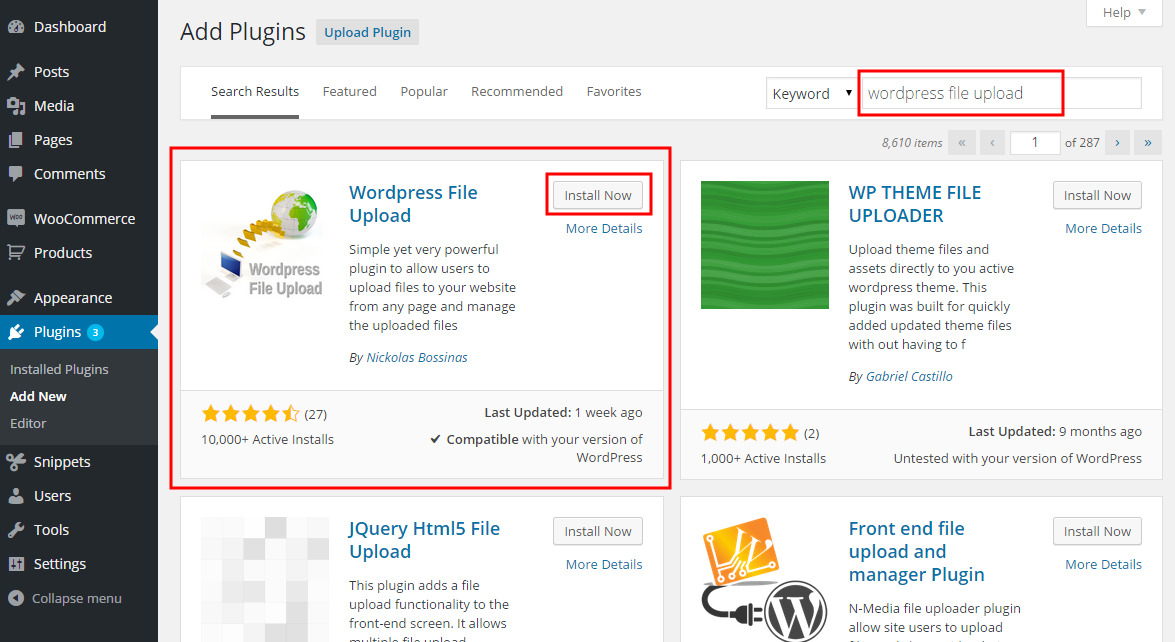
- When the installation finishes, press the Activate link.
- You can also install from a .zip file instead, using the Upload Plugin option shown in the image above.
Step 1 — installing the Pro version
- The Pro version is installed only from the .zip file you received when you bought the plugin. Go to Dashboard → Plugins → Add New and press the Upload Plugin button at the top of the screen, as shown in the image above.
- Choose the file from your computer and press Install Now.
- When the installation finishes, press the Activate link.
Step 2 — adding the plugin to a page or post
This step is the same for the free and the Pro version.
- Go to Dashboard → Settings → Iptanus File Upload. At the bottom of the screen is the Plugin Instances table. Press Add Plugin Instance:

- Choose the page or post from the dropdown and press OK.
- The plugin now appears in the Plugin Instances table.
Then follow this guide to configure the plugin with its visual editor.
If you have any further questions, please contact us.
The Iptanus team
Hi is there a way to control where the upload file plugin is displayed on the page it is selected to be shown on?. For example, when I add the plugin to my home page it shows up at the very top of the page and I would like for it to be displayed inside my content close to the bottom of the page.
Hi, you can open the page for editing and move the shortcode in any place you want.
Regards
Nickolas
Uncaught ReferenceError: wfu_Initialize_Consts is not defined
at (index):248
(anonymous) @ (index):248
load (async)
wfu_addLoadHandler @ (index):247
(anonymous) @ (index):248
Hi, can you please tell me the URL of the page with the plugin to try myself? Seems that a basic Javascript file of the plugin is not loading correctly.
Regards
Nickolas
Hi,
I really like your plugin so far, and the functionality as such works just like I want/need it to. I would however like some of the fields to be wider (Filename, user fields etc), but nothing I do in the tab “Dimensions” seem to change the width of the fields. I’ve made sure to also specify a width for the plugin. And I’ve tried with both “Plugin Fit Mode” and “Responsive”. Nothing affects the look of the plugin. Do you have any idea of what could be wrong?
Best regards,
Malin
Hi, dimensions need to be declared in the shortcode with ‘px’ suffix, e.g. 100px. Have you set them like this?
Regards
Nickolas
I hadn’t tried that, no. Works like a charm, thank you!
All the best,
Malin
I can’t figure out how to put this into the shortcode. Example?
Hi Royce, what is that you can’t figure out?
Regards
Nickolas