
Captchas are used on websites when submitting a form, uploading files, or generally sending data, to verify that the sender is not a robot. There are many of them; Google has its own, Google reCAPTCHA, which uses a public and a secret key, shared between the server and the client, to verify the user.
When you apply for a reCAPTCHA key pair, Google asks you to tie those keys to a domain, or to several. If the site is your own, that is fine. But if you are a plugin developer and you want to include reCAPTCHA in your plugin, you have a problem: you do not know which domains it will be installed on. You end up telling your customers to create a Google account, if they do not already have one, and obtain keys for their own domain. Not every customer is willing to do that.
In its first implementation, Google worked around this by offering developers global keys — keys that worked on any domain. That let developers build reCAPTCHA into their plugins, and it became very popular. It also became very hard to solve: in the fight against robots, Google made the puzzles so difficult that users complained, and the captcha ended up impractical.
Google then released reCAPTCHA v2, which fights robots differently and is far faster, safer and easier to use. It still needs a key pair tied to your domain. Global keys were not carried over to the new captcha, so plugin developers are once again forced to ask customers for a Google account and their own keys.
There is a way round it. The procedure below is somewhat involved, but it lets you implement reCAPTCHA v2 in your plugin without asking your customers for Google accounts or keys, and it is both effective and secure.
The idea is that the captcha is never generated on the user’s domain. It is always generated on your own web server, with your public and secret keys, and served to the user inside an iframe. That means you need a web server to answer requests from your plugin’s users. Simple as it sounds, several problems have to be solved properly, so that security is preserved — which is the whole point of a captcha — and the captcha behaves as expected.
The problems are:
- How is the captcha implemented securely?
- The iframe’s domain is different from the user’s domain, so the browser forbids the exchange of data between the captcha and the page. How does the page learn that the captcha has been solved? How is it told that the captcha has expired? How can it reset the captcha?
- The iframe does not resize, and reCAPTCHA sometimes grows to show extra elements — a prompt to type a word, or a grid of images to pick from. Those parts get cropped, which can make the captcha impossible to solve.
Server sides and client sides
To follow the procedure, it helps to name the parties involved.
- The captcha is generated on the plugin developer’s web server: the developer’s server side (DEV-SS).
- A customer of the developer runs the plugin on their own site. Whenever a visitor opens that site, the customer’s server generates the plugin along with the captcha: the website server side (WEB-SS).
- The plugin is served to the customer’s visitor, who interacts with it and with the captcha: the website client side (WEB-CS).
These three sides talk to each other over POST and GET requests, by HTTP or HTTPS. The server sides most often use PHP, and the client side uses JavaScript.
Most web servers offer only one-way communication with their users: the client asks the server for something and the server answers — a request for a page, say. The reverse cannot happen; a server cannot ask a client for anything.
When a visitor opens a page, a unique session is created between the visitor and the site. Sessions hold information about who the visitor is, and are a secure and effective way of verifying them. When the visitor closes the browser, or does nothing for a long time, the session is reset, so no sensitive data is left lying around for an attacker to find.
Session variables are what this procedure uses to secure communication between the sides and prevent tampering.
Basic implementation
The captcha is generated on DEV-SS. So when the developer’s plugin — installed by a customer on their site (WEB-SS), and invoked by a visitor opening that site in a browser (WEB-CS) — needs a captcha, it has to request one from DEV-SS. The simplest approach is for the plugin to output an iframe pointing at a URL on DEV-SS that returns the captcha’s HTML:

The captcha is generated in an iframe belonging to the developer’s domain, so it needs the developer’s keys, not the website’s. Whatever the website’s domain, and whether or not the customer has a Google account and keys of their own, the captcha will always appear.
That describes the basic idea. There is still a good deal to do.
Securing the implementation
reCAPTCHA uses its public and secret key pair to verify that the captcha was solved, without exposing anything sensitive to the client side, which is where attackers operate. The same has to hold here — so it is worth understanding exactly how reCAPTCHA works, and where the dangers lie.
The client side is the browser of the person opening the page. It must be treated as vulnerable: anything held in the browser’s memory or in a cookie can be stolen. Nothing sensitive can live there.
The server side is where the site itself runs. Sensitive information is kept there, and servers are defended accordingly.
Suppose a visitor wants to fill in a form and submit it, and the site’s owner has added a reCAPTCHA that must be solved first. This is how reCAPTCHA works:
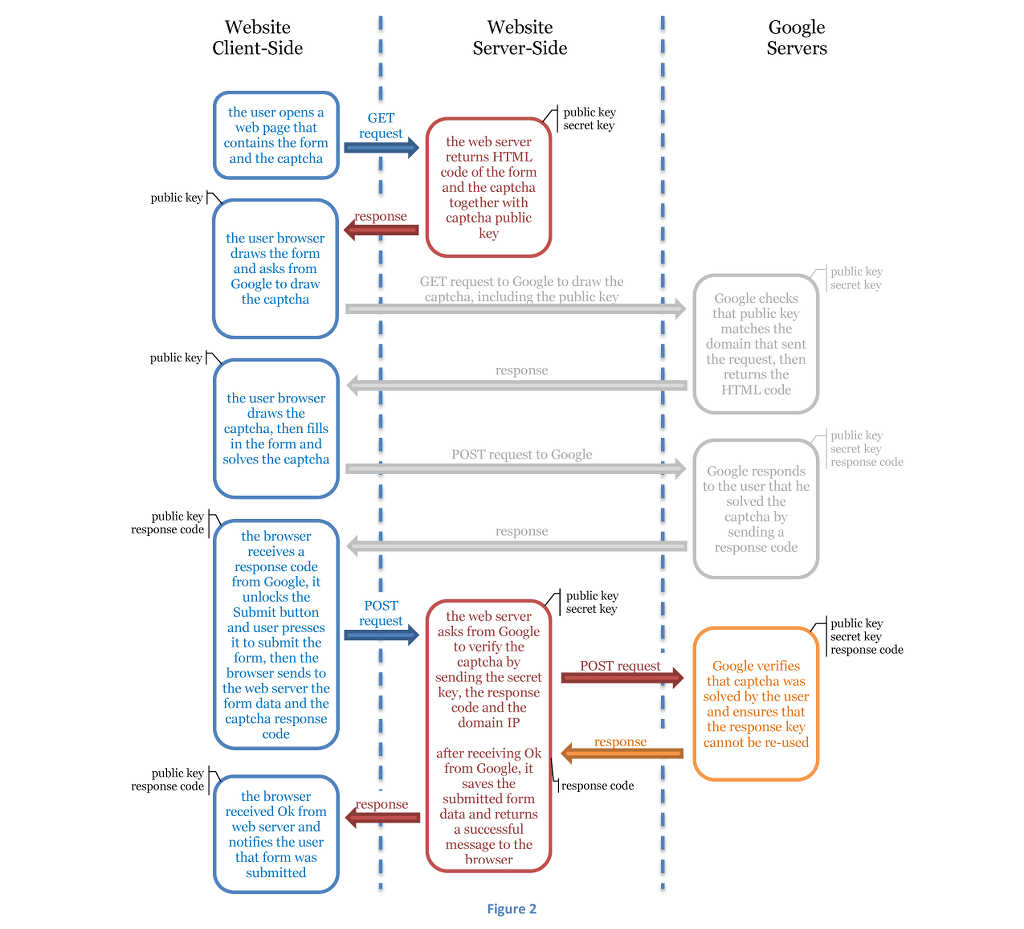
The diagram shows the whole cycle of submitting a form, and the exchanges between the visitor, the web server and Google’s servers. The light grey exchanges happen internally, with no involvement from the visitor and no code from the developer. The browser only ever knows the public key and the response code, and even if someone stole both, they could not be reused: Google guarantees that a response code and secret key can be verified only once. Nor can any response code be combined with the secret key — only ones generated by that site with its public key. A response code produced by an attacker’s own reCAPTCHA is worthless here. Note too that the web server verifies the captcha itself; it does not trust the client’s word, because that could be faked.
Now combine the two diagrams to arrive at reCAPTCHA without keys. Five parties are involved: the website client side, split between the elements belonging to the website’s domain and the iframe belonging to the developer’s domain; the website server side; the developer’s server side; and Google’s servers.
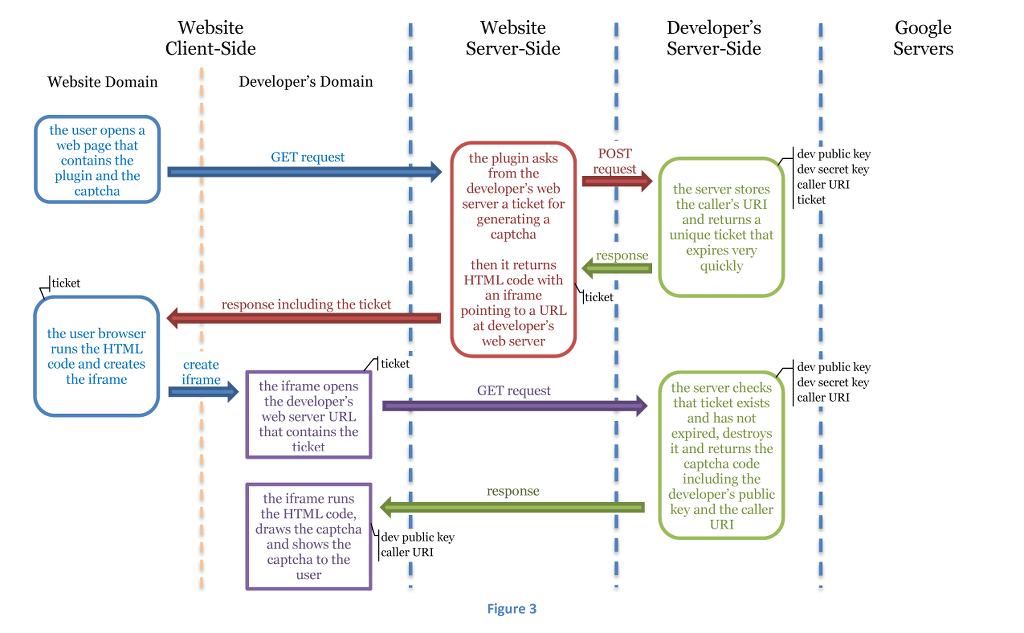
The developer’s public key and the caller URI are exposed to the iframe, but because the iframe sits on a different domain from the page, the client side cannot read them.
Nobody can fetch captcha code from the developer’s server without a ticket. The ticket is requested and issued between the two server sides, so that exchange is secure. The ticket does reach the visitor’s browser and could in principle be stolen, but it lives for only a few seconds — long enough for the page to finish loading — and it works exactly once, so outside this procedure it is useless.
Note also that the developer’s server learns the caller’s URI while issuing the ticket, and passes it on to the iframe. That turns out to matter, as the next section shows, for secure communication between the visitor’s page, on the website’s domain, and the iframe, on the developer’s.
Communication between page and iframe
The page and the iframe it contains belong to different domains, and browsers forbid cross-origin communication for good reasons. The visitor can interact with the captcha inside the iframe, but that interaction cannot reach the parent page. So when the captcha is solved and a response code is produced, the code cannot reach the page, cannot be submitted with the rest of the form data, and the server cannot verify that the captcha was solved at all.
The way round this is window messaging, introduced in HTML5. It allows cross-document communication between parent and child window objects through the postMessage method: one window sends a message to another, and an onmessage handler attached to the receiving window picks it up and acts on it.
To make that exchange safer, set the method’s targetOrigin parameter — to the caller’s URI when sending from the iframe to the page, and to the developer’s URI when sending the other way.
The messages that need to pass are:
- From the iframe to the page:
- the response code, once the visitor solves the captcha
- notice that the captcha has expired, which happens if too long passes between solving it and submitting the form
- notice that the captcha has resized, which happens when it shows extra elements such as a prompt to type a word or a grid of images to choose from
- From the page to the iframe:
- reset the captcha, after the form has been submitted
Adding the visitor’s interaction and the solving of the captcha to the last diagram gives:
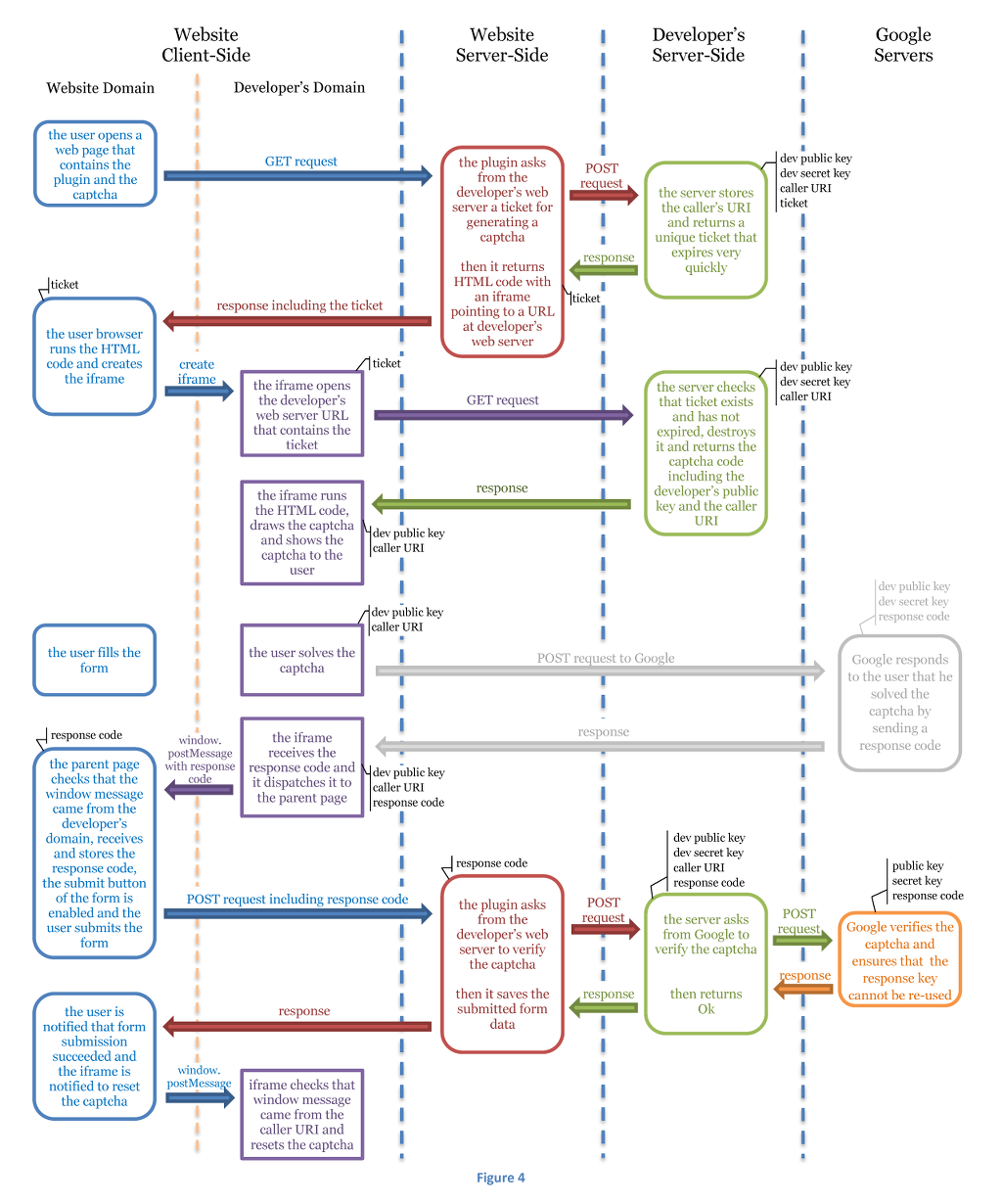
Captcha resizing
One problem remains: resizing. reCAPTCHA v2 sometimes shows extra content — a gallery of images asking the visitor to pick out a pattern, for instance. That content overlays everything else and stays until a selection is made, or disappears by itself after a few seconds.
In this arrangement, though, the captcha lives inside an iframe, and an iframe cannot grow to fit its contents. So when the captcha needs the extra space, the extra content is cut off, the visitor cannot solve it, and the whole procedure is useless.
The fix is to add extra provisions inside the iframe to detect when the captcha resizes and, through window messaging, to tell the parent window that owns the iframe to resize it, so that the whole captcha stays visible.
How the plugin does it
Iptanus File Upload is a plugin that WordPress site owners use to let their visitors upload files. It has many options for selecting and filtering files, a reliable upload algorithm, no limit on file size, and a range of security features including Google reCAPTCHA. It offers three reCAPTCHA options: version 1, version 2, and version 2 (no account). The last of those is the procedure described above, and it lets site owners use reCAPTCHA v2 without needing a Google account or keys of their own.
Thanks for your post. I’ve hit the same issue a while ago, and didn’t find any solution. But now you can disable the hostname check: https://developers.google.com/recaptcha/docs/domain_validation, and check it yourself.