

This guide shows how to install the Iptanus File Upload plugin and start using it. If the plugin is already installed, go straight to step 2.
Step 1 — installing the free version
- Install it as you would any other plugin. Go to Dashboard → Plugins → Add New and type “Iptanus File Upload” in the search box. It appears as the first result. Press Install Now.
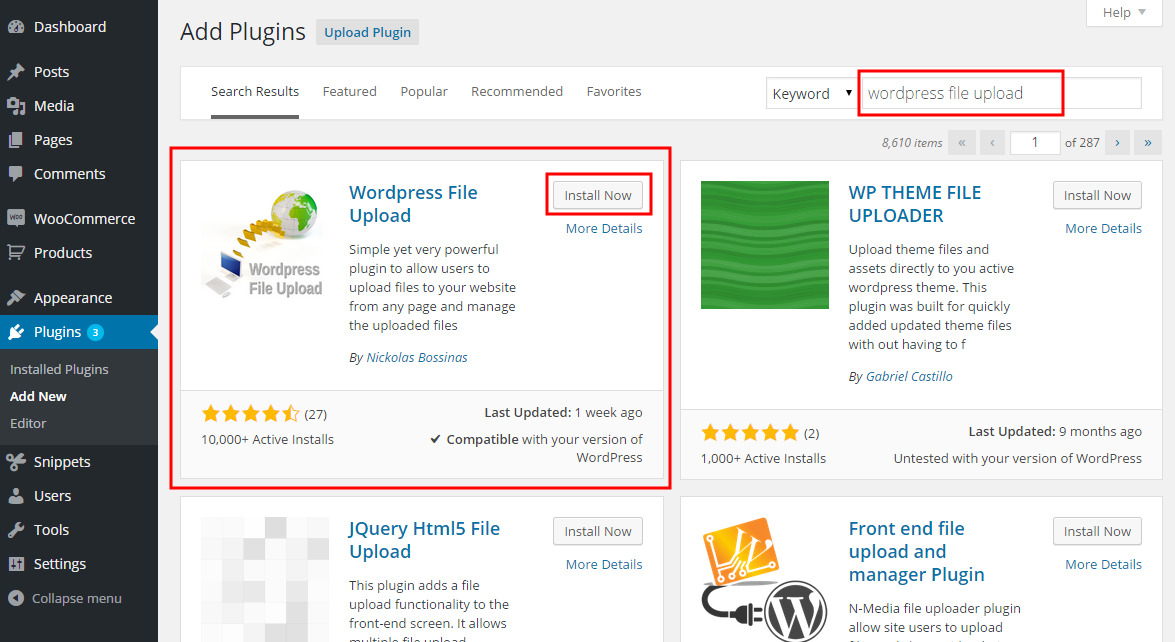
- When the installation finishes, press the Activate link.
- You can also install from a .zip file instead, using the Upload Plugin option shown in the image above.
Step 1 — installing the Pro version
- The Pro version is installed only from the .zip file you received when you bought the plugin. Go to Dashboard → Plugins → Add New and press the Upload Plugin button at the top of the screen, as shown in the image above.
- Choose the file from your computer and press Install Now.
- When the installation finishes, press the Activate link.
Step 2 — adding the plugin to a page or post
This step is the same for the free and the Pro version.
- Go to Dashboard → Settings → Iptanus File Upload. At the bottom of the screen is the Plugin Instances table. Press Add Plugin Instance:

- Choose the page or post from the dropdown and press OK.
- The plugin now appears in the Plugin Instances table.
Then follow this guide to configure the plugin with its visual editor.
If you have any further questions, please contact us.
The Iptanus team
Okay, that is great, thanks, Nickolas! Have just completed update, and the Google Drive enable button now does not do anything. I am still working on the Google drive issue. The main settings, which say, “Not activated! Press here to enable Google Drive uploads,” when I press to activate, nothing at all happens. I had last week deactivated that option as I could not get the drive option to work, no matter how i configured the shortcode, visual builder, etc. Pressing the button today, I see an internal server error (am trying to post the error, but Wordfence WON’T LET ME SHARE IT WITH YOU: 500 (Internal Server Error) w f u _ g d r i v e _ a u t h o r i z e _ a p p _ s t a r t @ w f u _ g d r i v e _ a d m i n f u n c t i o n s . j s v e r equal sign 4.9.8:3
o n C l i c k @ o p t i ons – g e n e r a l dot p h p questionmark p a g
e equal sign wordpress_file_ u p l o a d ampersand a c t i o n equal sign p lu g i n _ s e t t i n g s colon 1551
Hope the above helps. I also discovered that I had to go to my Google account settings and revoke access in Google, to this upload feature. I then again tried to authorized by the settings button, but no go, and generates same internal server error. Can you diagnose? And how do I revert back to the prior version? Just upload from my v4.8.0 zip file? Many thanks, for an otherwise great plugin!
I think possibly that line 1551 error is that on c l i c k should be set to a f u n c ti on instead of a string. You have:
o n c l i c k equal si g n quote — w f u _ g d r i v e _ a u t h o r i z e _ a p p _ s t a r t ( ‘1 5 b 8 c b 2 b e 9 ‘ ) semi colon then endquote
Hi
I installed the plugin but cannot get the buttons to respond on the page. tried several browsers, disabled popup blockers etc? Is this a conflict with WP Bakery page builder?
http://www.melloevents.com/content-uploader