

This guide shows how to install the Iptanus File Upload plugin and start using it. If the plugin is already installed, go straight to step 2.
Step 1 — installing the free version
- Install it as you would any other plugin. Go to Dashboard → Plugins → Add New and type “Iptanus File Upload” in the search box. It appears as the first result. Press Install Now.
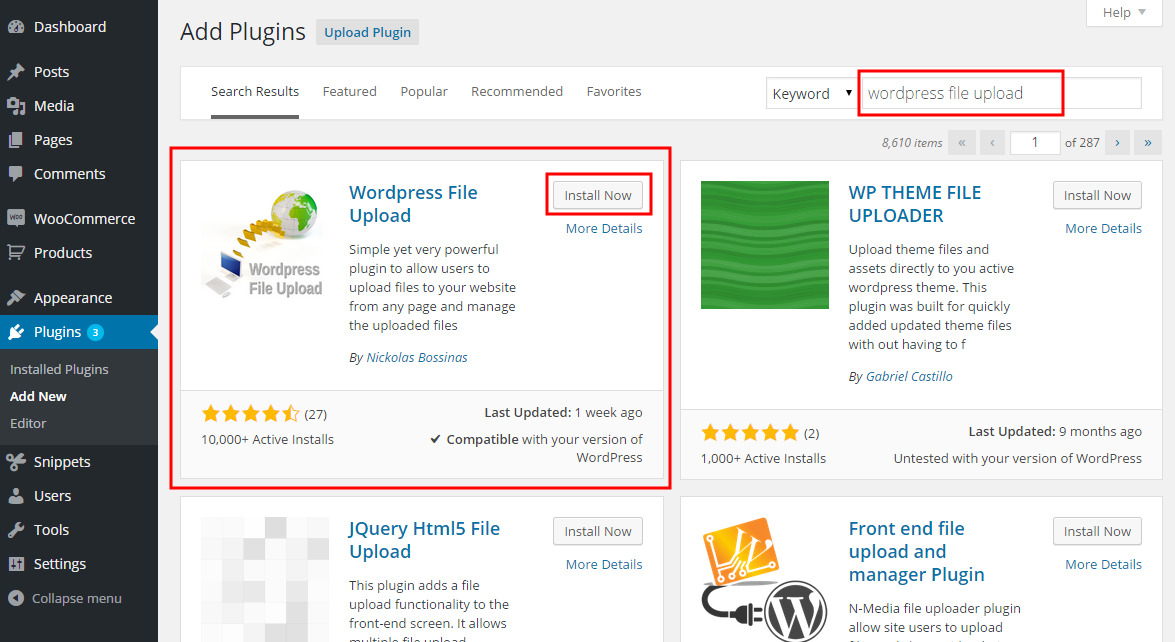
- When the installation finishes, press the Activate link.
- You can also install from a .zip file instead, using the Upload Plugin option shown in the image above.
Step 1 — installing the Pro version
- The Pro version is installed only from the .zip file you received when you bought the plugin. Go to Dashboard → Plugins → Add New and press the Upload Plugin button at the top of the screen, as shown in the image above.
- Choose the file from your computer and press Install Now.
- When the installation finishes, press the Activate link.
Step 2 — adding the plugin to a page or post
This step is the same for the free and the Pro version.
- Go to Dashboard → Settings → Iptanus File Upload. At the bottom of the screen is the Plugin Instances table. Press Add Plugin Instance:

- Choose the page or post from the dropdown and press OK.
- The plugin now appears in the Plugin Instances table.
Then follow this guide to configure the plugin with its visual editor.
If you have any further questions, please contact us.
The Iptanus team
Hi Nickolas
I am using your great plugin — upload file.
DO you know how to change the folder location to store the uploaded files. I tried the setting. But it is not working!
Wei
Hi, have you activated “Add Uploaded Files to Media” or “Attach File to Current Post” options? If yes, files will be forced to be saved to the default upload folder of WordPress because they are added to the Media Library.
Regards
Nickolas
Hi Nickolas,
I just implemented the free version. Just one question:
In “List of uploaded files” I find some icons under ACTIONS on the rights.
When I click the icon “Download File” a new tab opens, but no download happens.
I would expect a download to my local “Downloads”-folder.
Is my expectation wrong or what can be done?
Kind regards
Konrad
Yes indeed download to your local machine should happen. Something prohibits the download, probably an error. Press F12 to open Dev Console on your browser. Do you see any errors in Console when you press Download button?
Nickolas
Thanks for a great plugin Nickolas!
I was wondering if there is a built in function to pre-define file names. I simple want to rename uploaded files to %userid%.jpg/gif/png
Or do I have to create this functionality myself and hook it into the wfu_after_upload filter?