

This guide shows how to install the Iptanus File Upload plugin and start using it. If the plugin is already installed, go straight to step 2.
Step 1 — installing the free version
- Install it as you would any other plugin. Go to Dashboard → Plugins → Add New and type “Iptanus File Upload” in the search box. It appears as the first result. Press Install Now.
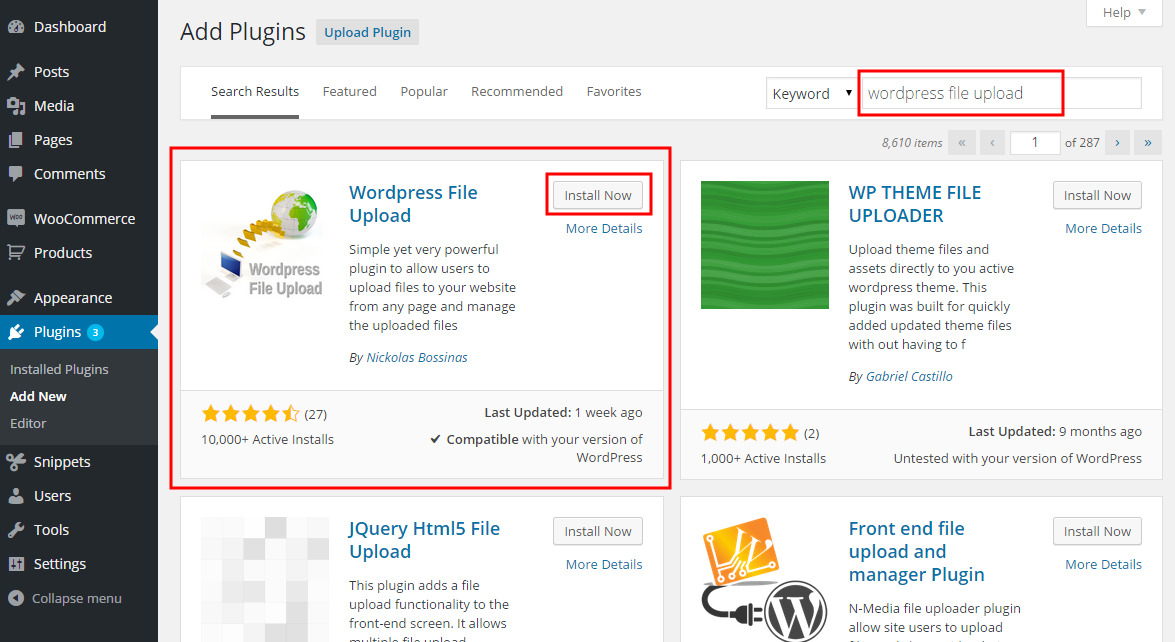
- When the installation finishes, press the Activate link.
- You can also install from a .zip file instead, using the Upload Plugin option shown in the image above.
Step 1 — installing the Pro version
- The Pro version is installed only from the .zip file you received when you bought the plugin. Go to Dashboard → Plugins → Add New and press the Upload Plugin button at the top of the screen, as shown in the image above.
- Choose the file from your computer and press Install Now.
- When the installation finishes, press the Activate link.
Step 2 — adding the plugin to a page or post
This step is the same for the free and the Pro version.
- Go to Dashboard → Settings → Iptanus File Upload. At the bottom of the screen is the Plugin Instances table. Press Add Plugin Instance:

- Choose the page or post from the dropdown and press OK.
- The plugin now appears in the Plugin Instances table.
Then follow this guide to configure the plugin with its visual editor.
If you have any further questions, please contact us.
The Iptanus team
Hola Nickolas,
acabo de implementar la versión gratuita.
Es posible ver desde el mismo frontend donde se hizo la carga, la lista de archivos que se han subido en esa carpeta y poder descargarlos desde ese mismo sitio?
Hi Gregorio, I think you are referring to the plugin’s front-end file viewer, which is a feature of the Professional version of the plugin. You can get some more info about it in this article.
Regards
Nickolas
hi
i add a short code in a page
how force user to upload only mp3 and mp4 files
i need to get the uploaded file url progmaticaly and use it with hooks
is it possible to produce error if the same file name exists?
There is an Allowed File Extensions option in the visual editor of the upload form, to restrict the allowed file types. Use *.mp3, *.mp4 in your case.
There is also option File Duplicates Policy. If you set it to reject, the uploaded file will be rejected if another one with the same filename already exists.
You can get the file url programmatically using wfu_after_upload filter. For instructions check this page.
Regards
Nickolas
How do i get the button to show on all product pages in woocommerce? I can’t even get it showing on one product because no products pages are listed. Thanks
Hi, I didn’t quite understand the question. What do you want to do?
Regards
Nickolas