

This guide shows how to install the Iptanus File Upload plugin and start using it. If the plugin is already installed, go straight to step 2.
Step 1 — installing the free version
- Install it as you would any other plugin. Go to Dashboard → Plugins → Add New and type “Iptanus File Upload” in the search box. It appears as the first result. Press Install Now.
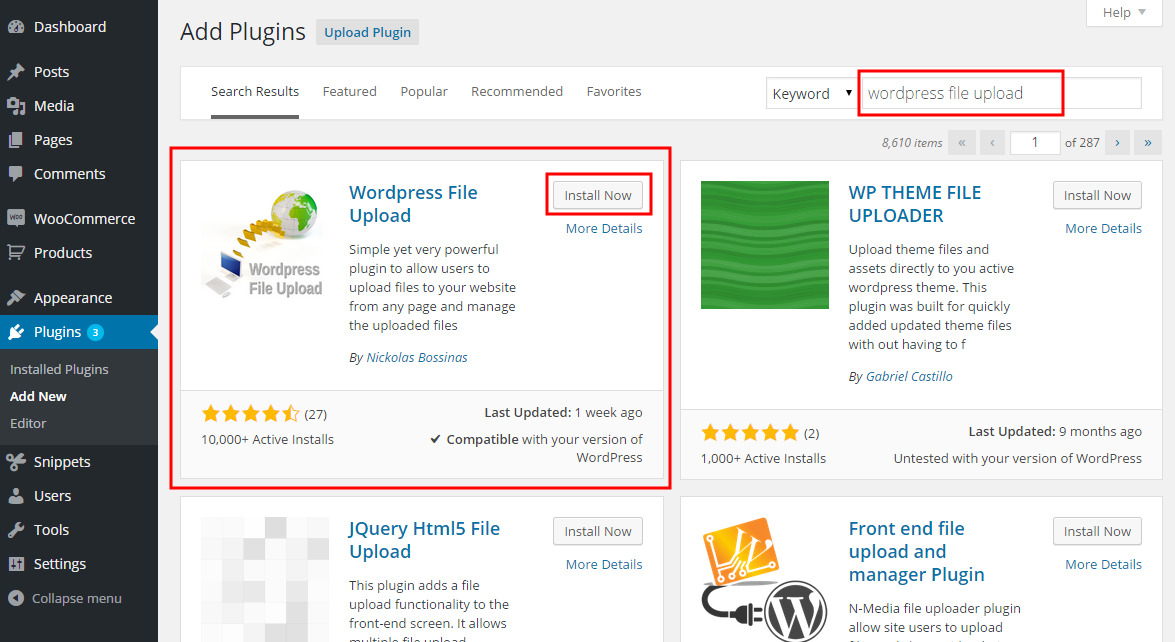
- When the installation finishes, press the Activate link.
- You can also install from a .zip file instead, using the Upload Plugin option shown in the image above.
Step 1 — installing the Pro version
- The Pro version is installed only from the .zip file you received when you bought the plugin. Go to Dashboard → Plugins → Add New and press the Upload Plugin button at the top of the screen, as shown in the image above.
- Choose the file from your computer and press Install Now.
- When the installation finishes, press the Activate link.
Step 2 — adding the plugin to a page or post
This step is the same for the free and the Pro version.
- Go to Dashboard → Settings → Iptanus File Upload. At the bottom of the screen is the Plugin Instances table. Press Add Plugin Instance:

- Choose the page or post from the dropdown and press OK.
- The plugin now appears in the Plugin Instances table.
Then follow this guide to configure the plugin with its visual editor.
If you have any further questions, please contact us.
The Iptanus team
how can i get a mail notifcation whenever a file is uploaded?
Hi, you can read this article for instructions.
Regards
Nickolas
Bonjour,
J’ai installé le plugin et j’ai un message “mise en ligne impossible / Erreur inconnue” qui s’affiche : Pouvez-vous m’indiquer ce qui pourrait provoquer cela?
Mon shortcode :
[wordpress_file_upload uploadpatterns=”*.*, *.zip, *.rar, *.7z, *.dwg, *.nwd, *.rvt, *.xls, *.xlsx, *.doc, *.docx, *.pdf, *.jpg, *.jpeg, *.tif, *.tiff” createpath=”true” accessmethod=”ftp” ftpinfo=”xxxx” uploadtitle=”Téléchargez des fichiers” selectbutton=”Sélectionnez le fichier” uploadbutton=”Téléchargez” successmessage=”Le fichier %filename% a bien été téléchargé” warningmessage=”Le fichier %filename% a bien été téléchargé, mais avec des avertissements” errormessage=”Le fichier %filename% n’a pas été téléchargé” waitmessage=”Le fichier %filename% est en cours de téléchargement” notify=”true” notifyrecipients=”xxx@gyyy.fr” notifysubject=”Notification de téléchargement de fichier” notifymessage=”Jblabla” attachfile=”true”]
I installed WordPress File Upload plugin, but I can’t create any uploader instance. Button “Press here to get started and add the uploader in a page” simply does nothing…
Maybe there is incompatibility with your theme. What theme do you have?
Regards
Nickolas