
The Iptanus File Upload plugin can store uploaded files over FTP. That is useful in two situations:
- when the files belong on an FTP server other than the website’s own, or
- when they belong on the website, but file permissions there force the use of FTP.
It works in two steps:
- The files are uploaded to a temporary directory on the web server over ordinary HTTP, because browsers cannot transfer over FTP themselves.
- The plugin then moves them from there to their final destination over FTP, using the credentials in the upload form’s shortcode.
1. Switch the FTP method on
Open the shortcode composer, go to the General tab and choose ‘ftp‘ for the Folder Access Method attribute:

The FTP attributes on the right become available.
2. Enter the FTP credentials
Connecting to an FTP server needs a username, a password, a host, and optionally a port. They go into the FTP Access Credentials attribute in this form:
username:password@ftphost:port
So for these details:
username: nickolas
password: 123456
FTP domain: ftp.iptanus.com
port: default
the attribute reads:

A few things worth knowing about this attribute:
- If the username or the password contains a : or an @, put a double backslash \\ in front of it, so that it is not mistaken for one of the separators. With the username nickolas@domain.com, the attribute becomes nickolas\\@domain.com:123456@ftp.iptanus.com
- The port is optional and can be left out — except with FTPS, where it must be given.
- Secure FTP (SFTP) is supported where the web server has the necessary libraries. Put an ‘s’ before the port: nickolas:123456@ftp.iptanus.com:s22
- FTP over TLS (FTPS) is supported on the same condition. Put the ‘s’ after the port: nickolas:123456@ftp.iptanus.com:22s
- Give the FTP domain on its own, with no folders after it.
- With FTPS, switch on passive mode as well — see below.
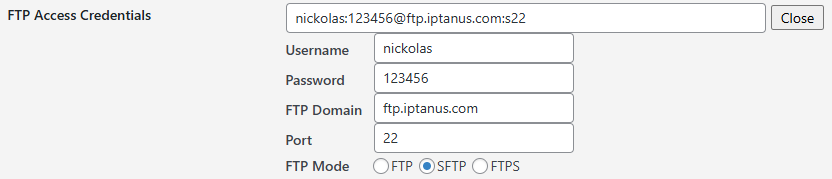
You can also fill these in as separate fields, through the Edit button beside the FTP Access Credentials attribute:
3. Set the upload path
If the files belong in a subfolder rather than the FTP root, name it in the Upload Path attribute:

With the value above, files are stored at ftp.iptanus.com/uploads/inbox. Switch on Create Upload Path as well and the folder is created if it does not exist.
4. Switch on the FTP domain attribute
In most cases Use FTP Domain also needs to be on, so that the plugin knows the files are bound for another server and not the website itself.

5. The remaining two options
- FTP Passive Mode — switch it on if the FTP server does not allow active mode.
- Permissions of Uploaded File — by default an uploaded file inherits the permissions of the folder it lands in, usually 0755. To set them yourself, give a four-digit octal number.
One limitation to note: FTP mode does not work with chunked uploads, so with FTP switched on, file size is bounded by whatever your web server allows.
For any questions or more information, please contact us.
The Iptanus team
Can you make your plug in send a notification to the admin letting them know a file has been uploaded?
Yes, open the visual editor of the plugin, then go to Notifications tab and activate Email Notifications. Then configure the recipients, subject and message. An email will be sent to the recipients whenever a file is uploaded.
Regards
Nickolas
Hi,
I’ve pro version of this plugin and I’m trying to upload files via SFTP. FTP works fine and my user has the access the SFTP file transfer. However, when I try to upload files via this plugin, I get the error “The web server doesn’t support SFTP.” Can you please assist me with this?
Kind Regards,
Sarthak
Hi, this means that your web server does not have the required SSH2 libraries installed to handle SFTP transfers. Please read this article about the required libraries. Perhaps you need to talk with your host about it.
Regards
Nickolas
Hi Nickolas,
Thanks for your reply. I’ve asked my hosting provider to add the respective library. However, I would like to mention that I can connect and upload files using FileZilla using same credentials. Do you still think it because of the SSH2 library? If so, I’ll wait for my hosting provider to add the respective library. Otherwise, can you please suggest any other solution?
Thanks in advance.
Kind Regards,
Sarthak
Hi, Filezilla is a desktop application and it already has all necessary libraries installed. I think SSH2 libraries are unfortunately required for SFTP to work from the plugin. Is using FTP instead of SFTP an option?
Nickolas
Hi Nickolas,
Thanks for the reply. Yes, it makes sense now why we need the SSH2 libraries. Yes, we need to use SFTP which is one of our value proposition. I’ve asked the hosting provider’s customer support to install the required libraries. Will update you once it’s working.
Kind Regards,
Sarthak
Hi Nickolas,
They’ve installed the SSH2 library and the error is gone. However, now I’m getting the following error:
Upload failed!
Targer folder doesn’t exist.
Failed upload path: sftp://:@:22/public_html/wp-content/sftp_uploads/
The above folder exist in the server. Still, it’s not picking them. I’ve tried leaving the upload path empty, and I’ve tried multiple paths, but nothing works. Can you help me here?
Thanks in advance.
Hi, the domain is missing somehow from the path. How is the shortcode configured? Please send it at info@iptanus.com
Regards
Nickolas
Hi, I have the same problem, can I get some help?
They’ve installed the SSH2 library and the error is gone. However, now I’m getting the following error:
Upload failed!
Targer folder doesn’t exist.
Failed upload path: sftp://:@:22/public_html/wp-content/sftp_uploads/
The above folder exist in the server.
My Path is different from the copy but I get the same error
Hi, there seems to be a problem with the configuration. Can you send me the shortcode at info@iptanus.com ?
Regards
Nickolas