
The Iptanus File Upload plugin can store uploaded files over FTP. That is useful in two situations:
- when the files belong on an FTP server other than the website’s own, or
- when they belong on the website, but file permissions there force the use of FTP.
It works in two steps:
- The files are uploaded to a temporary directory on the web server over ordinary HTTP, because browsers cannot transfer over FTP themselves.
- The plugin then moves them from there to their final destination over FTP, using the credentials in the upload form’s shortcode.
1. Switch the FTP method on
Open the shortcode composer, go to the General tab and choose ‘ftp‘ for the Folder Access Method attribute:

The FTP attributes on the right become available.
2. Enter the FTP credentials
Connecting to an FTP server needs a username, a password, a host, and optionally a port. They go into the FTP Access Credentials attribute in this form:
username:password@ftphost:port
So for these details:
username: nickolas
password: 123456
FTP domain: ftp.iptanus.com
port: default
the attribute reads:

A few things worth knowing about this attribute:
- If the username or the password contains a : or an @, put a double backslash \\ in front of it, so that it is not mistaken for one of the separators. With the username nickolas@domain.com, the attribute becomes nickolas\\@domain.com:123456@ftp.iptanus.com
- The port is optional and can be left out — except with FTPS, where it must be given.
- Secure FTP (SFTP) is supported where the web server has the necessary libraries. Put an ‘s’ before the port: nickolas:123456@ftp.iptanus.com:s22
- FTP over TLS (FTPS) is supported on the same condition. Put the ‘s’ after the port: nickolas:123456@ftp.iptanus.com:22s
- Give the FTP domain on its own, with no folders after it.
- With FTPS, switch on passive mode as well — see below.
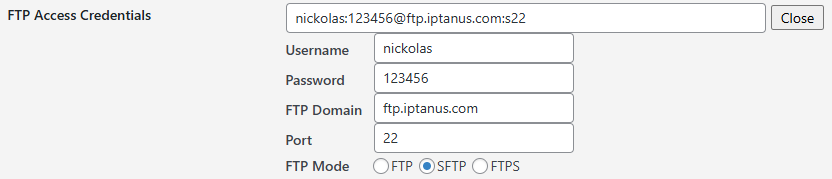
You can also fill these in as separate fields, through the Edit button beside the FTP Access Credentials attribute:
3. Set the upload path
If the files belong in a subfolder rather than the FTP root, name it in the Upload Path attribute:

With the value above, files are stored at ftp.iptanus.com/uploads/inbox. Switch on Create Upload Path as well and the folder is created if it does not exist.
4. Switch on the FTP domain attribute
In most cases Use FTP Domain also needs to be on, so that the plugin knows the files are bound for another server and not the website itself.

5. The remaining two options
- FTP Passive Mode — switch it on if the FTP server does not allow active mode.
- Permissions of Uploaded File — by default an uploaded file inherits the permissions of the folder it lands in, usually 0755. To set them yourself, give a four-digit octal number.
One limitation to note: FTP mode does not work with chunked uploads, so with FTP switched on, file size is bounded by whatever your web server allows.
For any questions or more information, please contact us.
The Iptanus team
Hi. I can’t make the plugin to work. By web seem that the server block the ip and by ftp don’t enter seems that if there is a ] in the pasword it get confused? remedy?
My server has the ftps option it doesn’t work with your plugin, right?