
Since version 4.16.0 the Iptanus File Upload plugin can send uploads to an Amazon S3 bucket. This article covers the Amazon side of that: what to configure in S3 so the plugin can connect.
There are two parts to it — the IAM user whose keys the plugin will use, and the permissions on the bucket where the files will land.
The screenshots below show the AWS console as it stood in 2021. Amazon rearranges it from time to time, so the wording of a menu may have moved on; the settings themselves have not.
The IAM user and its access keys
The plugin authenticates with the access keys of an IAM user. That can be the root user of your AWS account, or any other user created in the IAM Management Console.
Create a separate IAM user for this, holding only the permissions the plugin needs. Amazon advises against using root credentials for anything routine, and a dedicated user is easy to revoke on its own.
If you do use the root user, all that is needed is a pair of access keys:
- Sign in to the AWS Console as the root user.

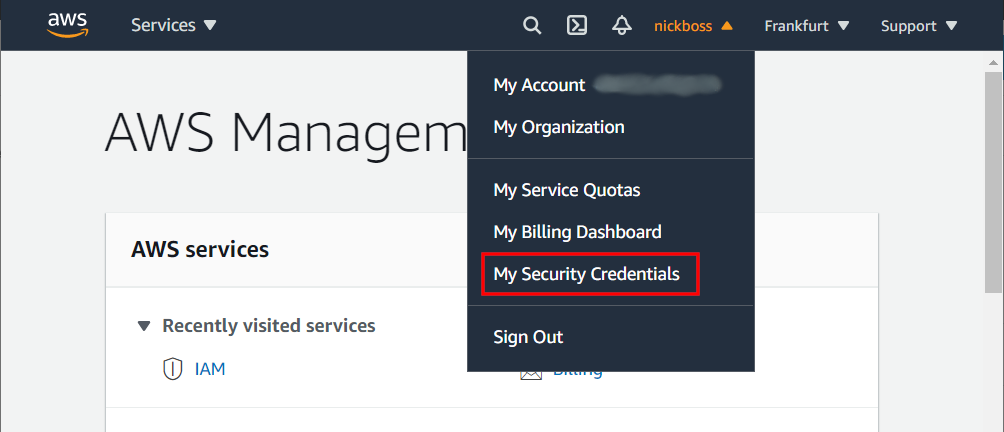
- Open My Security Credentials from the account menu at the top right.
- Open the Access Keys tab, which lists your access key ID and secret access key pairs.

- Any pair will do, but you need both halves — the list shows only the key IDs, and a secret access key can never be retrieved after the moment it is created. If you did not keep yours, make a new key with Create New Access Key.
If instead you use an existing IAM user, or create a new one as recommended above, give it these two policies:
- AmazonS3FullAccess
- IAMReadOnlyAccess

Then sign in to the AWS Console as that user, open My Security Credentials and take the access key ID and secret access key from there.
Bucket permissions
Amazon S3 blocks public access to a bucket by default. If you want the plugin to be able to make uploaded files public — which is optional, since files it uploads are private unless you say otherwise — that block has to be relaxed for the bucket in question. If every file is to stay private, you can leave the bucket as it is.
- In the AWS Console, go to the S3 area.

- Select the bucket the files will go to and open its Permissions tab.
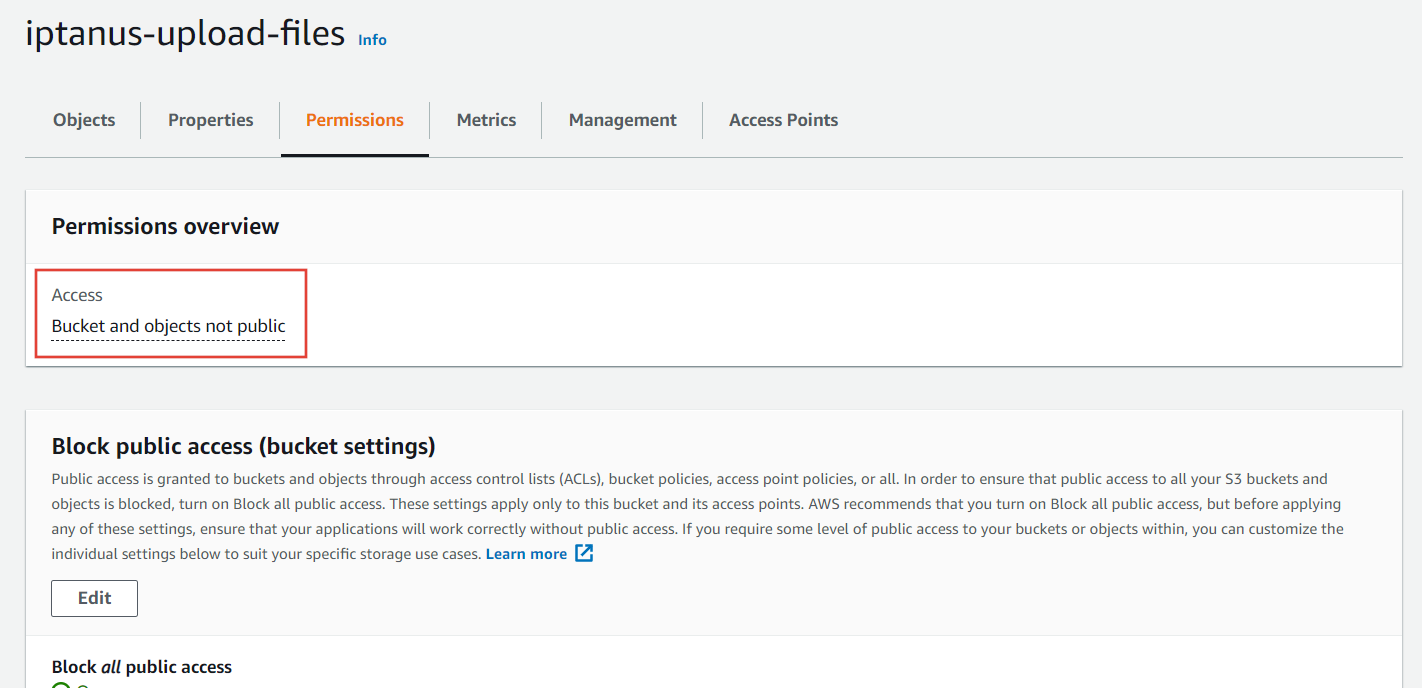
- It reports that the bucket is not public. Press Edit below it and set the public access options like this:

- Only the first two options need to be cleared — that is enough for the plugin. Press Save changes.
- The Permissions overview now reads Objects can be public. The plugin can upload to the bucket and, when you ask it to, make a file public. Files it uploads are private by default.
One thing to expect: after creating a new IAM user or a new bucket, the plugin may not be able to upload straight away. It usually takes a few hours for the change to reach all of Amazon’s servers.
For any questions or more information, please contact us.
The Iptanus team
Hi NIckolas
I have followed your guides and configuration, but I can’t get the paid uploader to work with S3. I have set bucket and account permissions as you describe.
Could you please clarify the syntax for parameters needed in your plugin for:
– Region
– Bucket
The calls from this plugin are registering in AWS in the key usage history, but it is not providing the correct parameters even though the credentials (key and secret) are working fine.
So I am hoping it is in the way I am entering the S3 settings into the plugin.
I posted a contact-us through your site a couple weeks ago but have not heard.
Thanks.