
Version 4.11 of the Iptanus File Upload plugin introduced its own Gutenberg blocks, so that upload forms and file viewers can be added to a page without touching a shortcode.
Gutenberg is WordPress’s page and post editor. It is block-based, as many third-party page builders are, and has been the default editor since WordPress 5.0. The plugin has been compatible with it since Gutenberg’s public release; what follows is about the plugin’s own blocks.
The two blocks
 | Plugin upload form shortcode |
 | Plugin front-end file viewer shortcode |
Both sit under the Widgets block category:

The uploader block
Add this block to create a new upload form. Freshly added, it looks like this:

It behaves much like a Gutenberg Shortcode block that already carries all of the shortcode’s attributes.
The uploadid attribute is set to a random four-digit number, so that no two uploader blocks share an ID — which matters when a page carries more than one upload form. You can change it if you want to.
Previewed, the page looks like this:

The file viewer block
Add this block to create a file viewer. Freshly added, it looks like this:

Its browserid attribute is likewise a random four-digit number, so that two file viewers on one page cannot collide. You can change it too.
Previewed, the page looks like this:

Editing a block
Either block can be edited in several ways, the easiest being the plugin’s shortcode composer. Select the block, and with the cursor inside it an edit icon appears:
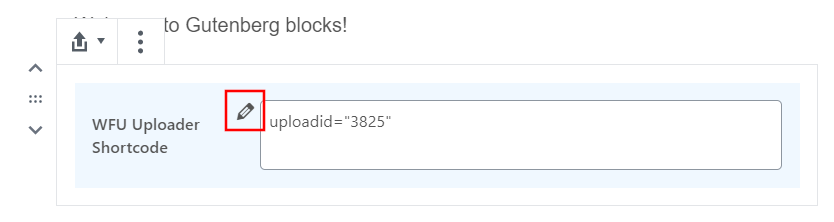
Pressing it opens the shortcode composer in a new browser tab:

Press Update and the composer closes, with the changes showing in the block:

You can also edit the attributes inside the block directly.
Migrating from the classic editor
Turning old [wordpress_file_upload…] and [wordpress_file_upload_browser…] shortcodes into blocks is straightforward. A page arriving from the classic editor looks like this:

The shortcodes are plain text. Gutenberg offers to convert the classic content into blocks, and when you accept, the plugin recognises its own shortcodes and turns them into its blocks:

If the page also carries custom script code, take it through the separate migration steps — Gutenberg does not convert scripts cleanly.
Converting between block types
Other blocks can be converted into the plugin’s, and the plugin’s into others. Take a paragraph block holding an uploader shortcode:

Its options include converting it to another block type:

The plugin spots the uploader shortcode in the paragraph text and adds its own block to the Transform To list. The conversion works the other way as well: a plugin block can become a Paragraph, Custom HTML or Shortcode block.
Reusing a block
Gutenberg can save a block for use on other pages and posts — something the plugin’s users had asked for over a long time. Choose Add to Reusable Blocks from the block’s options:

Then give it a name:

It is now saved and can be inserted whenever you need it:

A management screen lets you edit and delete everything you have saved this way. In WordPress 6.3 and later, these are called synced patterns and are managed from Appearance → Patterns.
For any questions or more information, please contact us.
The Iptanus team
Ask a question
Answered by Iptanus, usually within a working day.