
This article covers how the Iptanus File Upload plugin behaves in Gutenberg, WordPress’s block editor, and how to move a page that still uses the classic editor across to it.

Gutenberg builds a page out of blocks, in the manner of a page builder. It arrived as an optional plugin in WordPress 4.9.8 and became the default editor in WordPress 5.0, released in December 2018.
The plugin has been compatible with it since Gutenberg’s public release. If you are starting a new page today, the plugin’s own Gutenberg blocks are the easiest route; the rest of this article is about pages written in the classic editor.
Shortcodes
The plugin uses the [wordpress_file_upload] shortcode for an upload form, and [wordpress_file_upload_browser] for the front-end file viewer. Both can be configured through the plugin’s shortcode composer.
Gutenberg has a Shortcode block for exactly this purpose:

That is the recommended place for them, though they also work inside Custom HTML blocks, Classic blocks and others. The plugin’s shortcodes are fully compatible with Gutenberg however they are added.
So is the shortcode composer: changes made there are reflected in the page or post straight away, which is more than can be said for some page builders.
Custom code
In the classic editor, custom JavaScript went into the HTML view wrapped in <script> tags, with limitations and the occasional problem.
In Gutenberg, JavaScript and CSS both belong in a Custom HTML block — JavaScript in <script> tags, CSS in <style> tags. That block is a far better place to write code, with line numbers, syntax highlighting and auto-completion.
What happens to a classic page
Here is a page, in HTML view, holding an upload form, a file viewer and a piece of custom JavaScript that fills the form’s ID field with a random string:

In a browser it looks like this — both shortcodes render, and the ID field carries its random string:

Open that page with Gutenberg enabled and its contents appear inside a single Classic block:

The shortcodes are where they were. But switch to “Edit as HTML” from the  menu and something has changed:
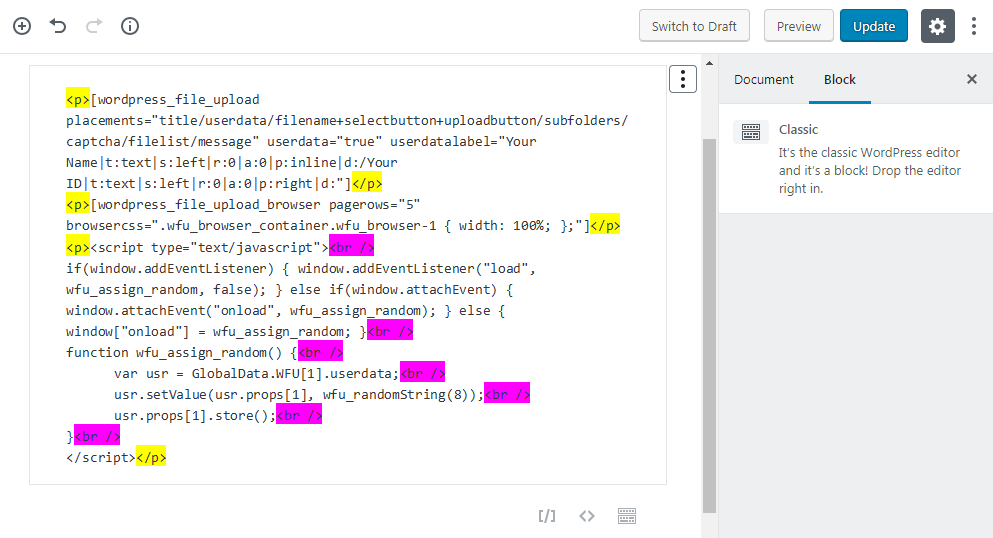
The shortcodes and the script have been wrapped in paragraph (<p>) tags, which does them no harm. But line breaks (<br />) have been inserted inside the script, which makes it invalid — so it no longer runs.
Pressing “Convert to Blocks” from the same menu makes matters worse:

The two shortcodes convert cleanly into Shortcode blocks, but the script becomes a Paragraph block and is mangled. Save the page and this is the result:

The script’s source is printed on the page and does nothing — the ID field is empty.
Migrating the shortcodes
Shortcodes should end up as Shortcode blocks. The quickest way is “Convert to Blocks” from the menu, which converts them directly. Nothing further is needed.
Alternatively, add Shortcode blocks by hand and paste the shortcode text into them.
Migrating the custom code
Custom script code is the part that needs care. Add a Custom HTML block by hand and paste the code into it:

Before you do, check that the code carries no <br /> elements, because those will break it.
Save the page, open it in a browser, and both the shortcodes and the script work as they did.
For any questions or problems with Iptanus File Upload and Gutenberg, please contact us.
The Iptanus team
Why don’t you ever make videos how to use this Plugin? It is so frustrating that you have NO VIDEOS showing how to do things.
You have a point. I have focused so much on improving the plugin and adding features that I have missed that. I will consider your remarks and will make some ones.
Nickolas