

This guide shows how to install the Iptanus File Upload plugin and start using it. If the plugin is already installed, go straight to step 2.
Step 1 — installing the free version
- Install it as you would any other plugin. Go to Dashboard → Plugins → Add New and type “Iptanus File Upload” in the search box. It appears as the first result. Press Install Now.
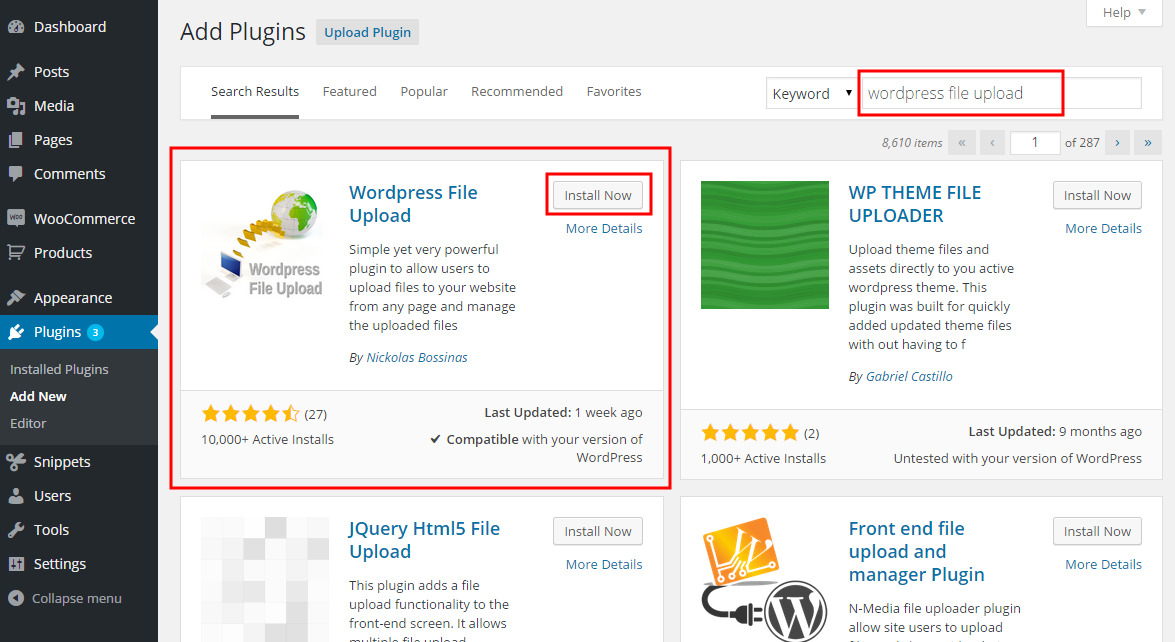
- When the installation finishes, press the Activate link.
- You can also install from a .zip file instead, using the Upload Plugin option shown in the image above.
Step 1 — installing the Pro version
- The Pro version is installed only from the .zip file you received when you bought the plugin. Go to Dashboard → Plugins → Add New and press the Upload Plugin button at the top of the screen, as shown in the image above.
- Choose the file from your computer and press Install Now.
- When the installation finishes, press the Activate link.
Step 2 — adding the plugin to a page or post
This step is the same for the free and the Pro version.
- Go to Dashboard → Settings → Iptanus File Upload. At the bottom of the screen is the Plugin Instances table. Press Add Plugin Instance:

- Choose the page or post from the dropdown and press OK.
- The plugin now appears in the Plugin Instances table.
Then follow this guide to configure the plugin with its visual editor.
If you have any further questions, please contact us.
The Iptanus team
Hi,
I just set up the free version of the plugin and it worked fine, so I bought the pro version. Just received this error message when I downloaded and attempted to activate the pro version Zip file.
”
Fatal error: Cannot redeclare register_wfu_widget() (previously declared in /var/www/vhosts/26/307951/webspace/siteapps/WordPress-84458/htdocs/wp-content/plugins/wp-file-upload/wordpress_file_upload.php:95) in /var/www/vhosts/26/307951/webspace/siteapps/WordPress-84458/htdocs/wp-content/plugins/wordpress-file-upload-pro/wordpress_file_upload.php on line 114
”
Please advise.
Diarmuid
Hi, please deactivate the Free version and then activate the Pro one.
Regards
Nickolas
How to change the upload file path location in pro version.. I want to download the file from admin panel.. also i want to include the shortcode in woo-commerce page before add to cart button. How to add the code in function.php file??
Hi, if you hover the mouse over the file in File Browser tab, you will notice a link to download the file. Is this what you ask?
If you want to add the shortcode using PHP, then this is the right command:
echo do_shortcode("[wordpress_file_upload ...]");You need to replace the three dots (…) with additional options.
Regards
Nickolas
Hello,
When I use MESSAGE placement the plugin stop working.
How can I use it to show uploading status ??
Thanks
Hi, this is not a normal behaviour of the plugin. Can you send me the URL of the page to check myself?
Nickolas