

The Iptanus File Upload plugin carries a visual editor called the Shortcode Composer. It lets you configure an upload form without writing shortcodes by hand — which matters, because the plugin has more than fifty options.
Once the plugin is installed and added to a page or post, as described in the getting started guide, there are two ways to open the composer for that upload form.
From the Dashboard
- Go to Dashboard → Settings → Iptanus File Upload.
- Find the Plugin Instances table, which lists the upload form you added:

- Click Plugin 1 to open the Shortcode Composer.
- The composer groups the options into tabs. Some are simply on or off; others take text, a choice from a list, a colour, and so on. The shortcode itself is shown at the top of the page and updates as you go:
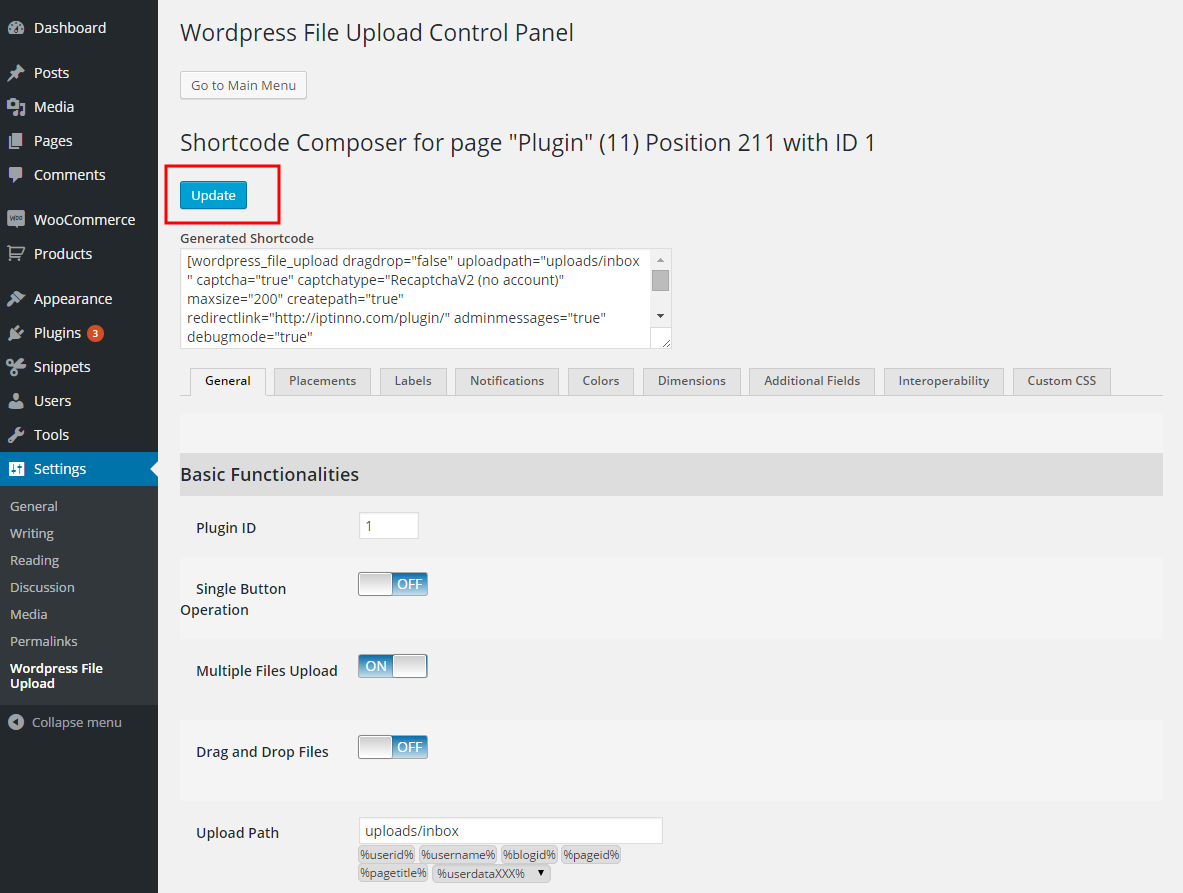
- Press Update. Nothing is applied to the upload form until you do.
From the page or post
- Open the page or post holding the upload form in your browser.
- Hover over the form. A yellow pencil appears in its top-left corner:
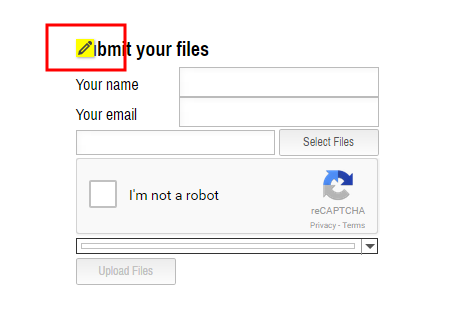
- Click the pencil. The Shortcode Composer opens in a new tab or window — if nothing happens, allow pop-ups for the site in your browser.
- Make your changes and press Update. The page holding the form reloads to show them.
- Carry on editing, or close the composer.
If you have further questions, please contact us.
The Iptanus team
Hi, when I clip to upload I keep getting –
‘upload failed!
Target folder doesn’t exist.
File not allowed
Sorry if this is standard stuff but I’m a novice WordPress user
Hi, this means that the folder you try to upload does not exist. How is the shortcode?
Regards
Nickolas
Hi,
Sorry for sounding like a newbie idiot, but I’m not the best at this stuff! How do you get the uploaded files to be viewable? Files are uploaded, they are in the ‘Uploads’ folder, but I don;t know how to display them on a page.
Thanks in advance!
Hi, do you have the Free or Pro version of the plugin?
Regards
Nickolas
I am also a newbie and don’t understand how to create a page where the files are displayed… I have the free version.
Also how do you get the webcam to work?
Hi, you need to add the shortcode [wordpress_file_upload] inside a page. Then you can edit it using the visual editor of the plugin (instructions).
Here are also instructions about the webcam feature.
Regards
Nickolas
I cannot get the Select File button to operate? Why could this be. I’ve searched and not seen any other posts experiencing the same? I have disabled any popup blockers. Am using chrome browser.
Hi, the theme’s styling hides some plugin’s styling. Please add the following css code in Custom CSS area of your theme:
input#upfile_1 { margin-top: 0; }Nickolas