

The Iptanus File Upload plugin carries a visual editor called the Shortcode Composer. It lets you configure an upload form without writing shortcodes by hand — which matters, because the plugin has more than fifty options.
Once the plugin is installed and added to a page or post, as described in the getting started guide, there are two ways to open the composer for that upload form.
From the Dashboard
- Go to Dashboard → Settings → Iptanus File Upload.
- Find the Plugin Instances table, which lists the upload form you added:

- Click Plugin 1 to open the Shortcode Composer.
- The composer groups the options into tabs. Some are simply on or off; others take text, a choice from a list, a colour, and so on. The shortcode itself is shown at the top of the page and updates as you go:
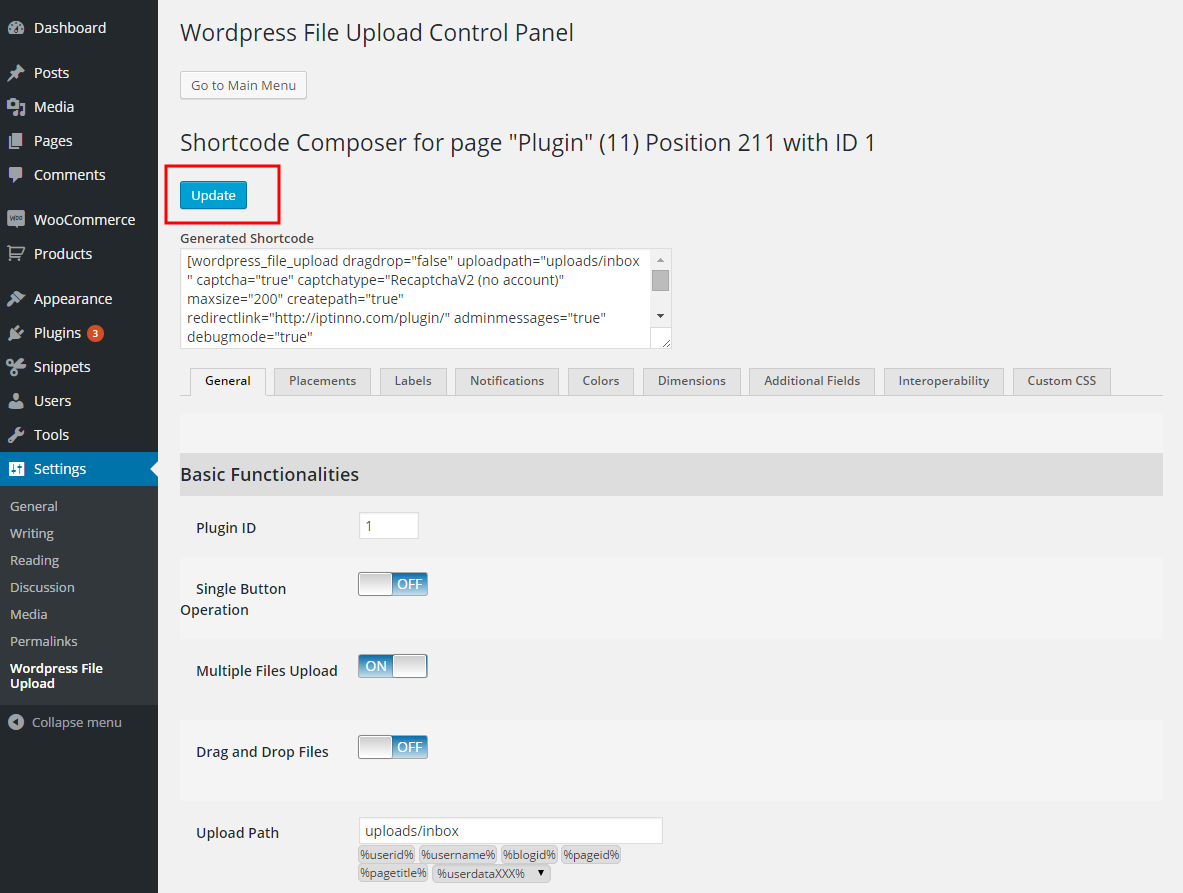
- Press Update. Nothing is applied to the upload form until you do.
From the page or post
- Open the page or post holding the upload form in your browser.
- Hover over the form. A yellow pencil appears in its top-left corner:
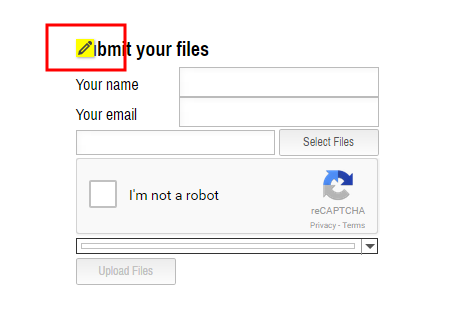
- Click the pencil. The Shortcode Composer opens in a new tab or window — if nothing happens, allow pop-ups for the site in your browser.
- Make your changes and press Update. The page holding the form reloads to show them.
- Carry on editing, or close the composer.
If you have further questions, please contact us.
The Iptanus team
Hi – I am having trouble seeing the uploaded files. I have a page set up and I’m close but I’m missing something. I want the shop owner to see, download and delete the files without having to log in…
http://www.capitolcopy.com/uploads/
Any suggestions? Thanks, Richard
Hi, I suppose you refer to the front-end file viewer of the plugin. If you want to make it visible for non-logged users (guests), then you need to open the visual editor of the shortcode, go to General tab and check “Select all” and “Include guests” in Browser Roles and Browser Users attributes. If you want to make all files visible, then you need to go to Filters tab and check again “Select all” and “Include guests” in Filter by Role and Filter by User attributes.
However, I should mention that if the site owner wants to see the files without having to log in, then anyone else would be able to do so.
Regards
Nickolas
How can I reset the plugin to default settings for all
Don’t worry I have done it … but thanks for an awesome plugin!!!
Hi, there is no single reset function. If you want to reset the plugin here are some steps (for Pro version):
1. Go to Dashboard / Settings / WordPress File Upload / Maintenance Actions and press buttons Clean Log and Reset Dropbox Uploads.
2. Go to Settings tab, uncheck all checkboxes, empty all textboxes, set the first option to all dropbdowns and deactivate Dropbox. Then Open File Browser Permissions, uncheck all options in Default Role, set all other roles to “default”, set Default User to “from role” and all other users to “default”.
3. Go to Hooks tab and delete any hooks you may have created.
4. Go to Advanced tab, locate any changed options (they will be green) and change them to their default value.
5. Go to File Transfers and remove any pending uploads from there.
This is the only way for the moment. Future version will be more simple to do it.
Regards
Nickolas
Nikcolas,
Do you have a PM address I can contact you on? I have some specific request which I would pay additionally for.
I am looking to be able to add multiple files to the same line (so upload 1 and upload 2 in an additional field), is this possible?
Daniel
Hi Daniel, you can send an email at info@iptanus.com. Can you be more specific about the request?
Nickolas