
This article explains how to resolve the “Upload Failed! File not allowed.” error when uploading files with the Iptanus File Upload plugin.
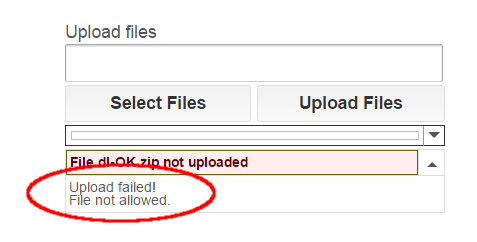
The error means the file was rejected because either its extension or its filename was not allowed. Here is what to check.
Check the file extension
Start by checking the file extension, following the instructions in the Allowed File Types of Iptanus File Upload Plugin article.
Check the filename
If the extension is fine but the error persists for some files, check the filename next. Files whose names contain more than one dot — for example myfile.1.jpg — are not allowed by default, to protect the site from double extension attacks. This behaviour is controlled by the Wildcard Asterisk Mode setting, in the Advanced tab of the plugin’s page in the Dashboard. To lift the restriction on dots, set it to loose.

Why the policy is strict
Iptanus File Upload applies a strict policy to the names and types of uploaded files. It is one of the plugin’s security measures, and it exists to protect the site against hacking attempts. There is a detailed description in the Iptanus File Upload Security article.
If you have any questions, or need further help, please contact us.
The Iptanus team
Hi, is this Advanced tab only available in the Pro Version? Currently I have Free 4.0.1 version installed and can’t find it.
Thanks
Yes, it is only available in Pro version, what do you want to do?
Nickolas
Hi, thanks for your answer. Just trying to solve the issue with more than one dot in filename.
Hi there
I would like to purchase the pro version but i have some problem using the free version:
1. i want to upload .stl and .obj file, but your plugin have forbidden due to security issue, please advise.
2. I setup my upload path as “uploads/users/%username%” and enabled “Create Upload Path”, however when i test try to upload a .doc file, the file goes to /uplaods/2017/10. Please advise.
3. Continuing from question 2, after i successfully uploaded the .doc file, no successfully message pop-up.
4. I added drop down in the “additional fields”, so after my visitors successfully uploaded their files, where does the “additional fields” information be shown?
5. I have chosen upload roles as all users except guest. When i surf my web as a guest, there is no upload area be showing on the page. Can the plugin be adjusted to give notice to the visitors to sign in instead of hiding the upload area?
Thanks
Patrick
I’m having the same problem with adding .stl & .obj extensions.
I’ve tried the “WP Extra File Types” plugin using mime type “application/object” AND
I added the following code to the theme’s functions.php:
add_filter(‘post_class’, ‘tt_hidetitle_class’);
function my_myme_types( $mime_types ) {
$mime_types[‘stl’] = ‘application/object’;
$mime_types[‘obj’] = ‘application/object’;
return $mime_types;
}
add_filter( ‘upload_mimes’, ‘my_myme_types’, 1, 1 );
This allowed me to upload *stl files to the media library but NOT using your plugin.
Thankyou for any advice!
Hi, the plugin has its own multiple mechanisms of protecting the website from hacker attacks. One of them is to forbid, by default, certain extensions which may contain executable code. Stl and obj are included in these blacklisted extensions. You can read more it here.
You can still enable these extensions by doing the following:
1. Add the following lines in functions.php file of your theme:
global $wfu_extension_blacklist;
if ( isset($wfu_extension_blacklist[“stl”]) ) unset($wfu_extension_blacklist[“stl”]);
if ( isset($wfu_extension_blacklist[“obj”]) ) unset($wfu_extension_blacklist[“obj”]);
2. Set Allowed File Extensions in the shortcode like this: *.*, *.stl, *.obj
Regards
Nickolas