

The Iptanus File Upload plugin carries a visual editor called the Shortcode Composer. It lets you configure an upload form without writing shortcodes by hand — which matters, because the plugin has more than fifty options.
Once the plugin is installed and added to a page or post, as described in the getting started guide, there are two ways to open the composer for that upload form.
From the Dashboard
- Go to Dashboard → Settings → Iptanus File Upload.
- Find the Plugin Instances table, which lists the upload form you added:

- Click Plugin 1 to open the Shortcode Composer.
- The composer groups the options into tabs. Some are simply on or off; others take text, a choice from a list, a colour, and so on. The shortcode itself is shown at the top of the page and updates as you go:
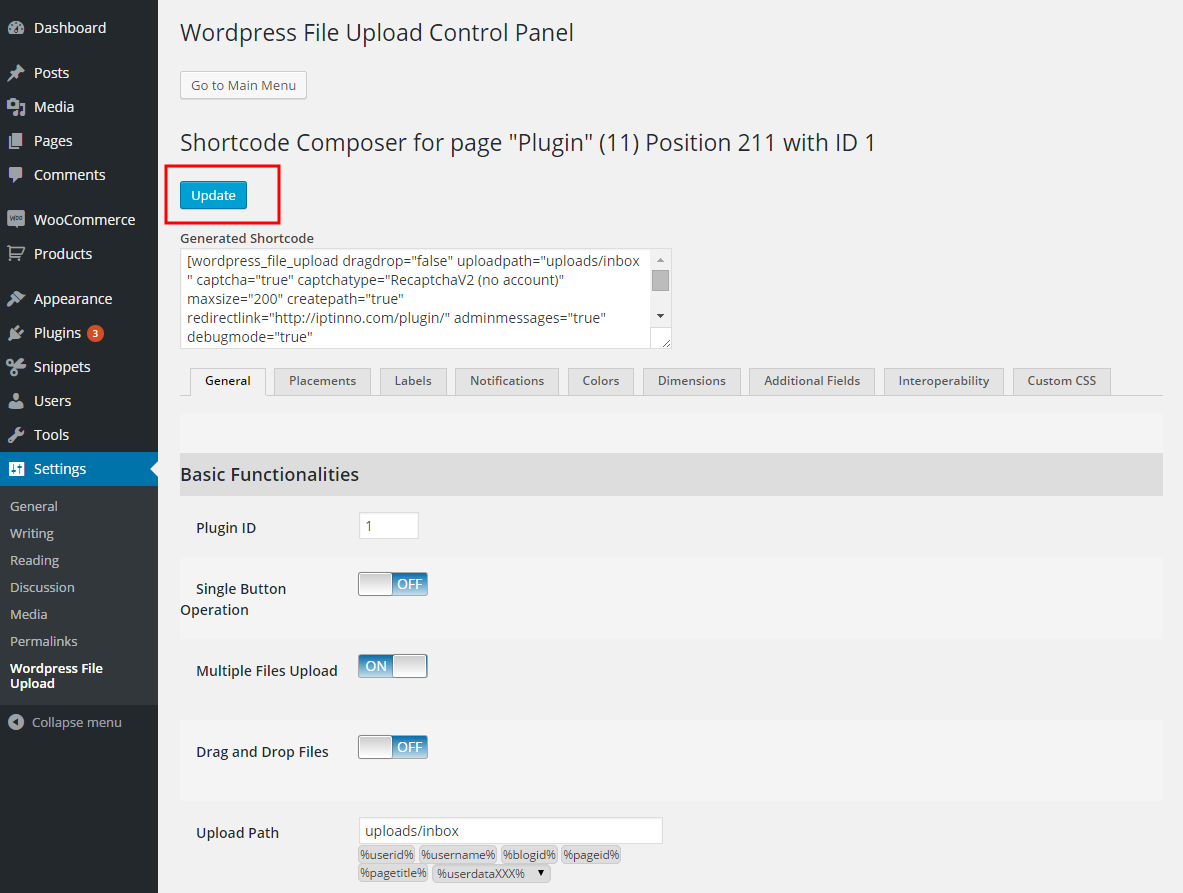
- Press Update. Nothing is applied to the upload form until you do.
From the page or post
- Open the page or post holding the upload form in your browser.
- Hover over the form. A yellow pencil appears in its top-left corner:
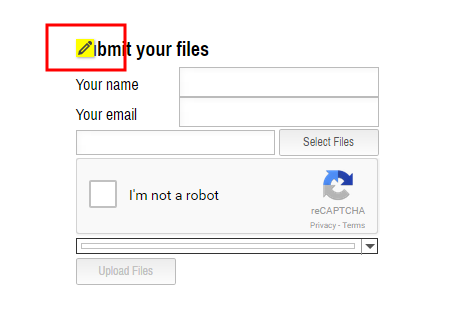
- Click the pencil. The Shortcode Composer opens in a new tab or window — if nothing happens, allow pop-ups for the site in your browser.
- Make your changes and press Update. The page holding the form reloads to show them.
- Carry on editing, or close the composer.
If you have further questions, please contact us.
The Iptanus team
Hi, I am looking to put multiple file upload buttons in one page but i cannot find the multiple files upload function under the ‘basic functionalities’. I am wondering if the multiple file upload is only for the paid version. Please let me know. Thank you very much!
I have added the shortcode to my files page but when viewing the page, the pencil icon does not show and underneath where the pencil icon should be is a message that says ..loading visual editor that just keeps running.
I downloaded your plugin and set it up on a webpage.
When I tried to use it with both a .jpg and .pdf files, I received the same error:
Upload Failed!
File Note Allowed!
My host is Go Daddy. I’m wondering if there’s some security settings on Go Daddy I need to adjust?
I’m using the default settings for your plugin
It turns out the I CAN load .jpg and .pdf files, but only if they are small file sizes. Very small. I have my psp settings in Go Daddy set to 32 MB, so it shouldn’t be that. Is there a max file size of like 1 MB for the “free” version of your plugin?
No, there is no limit. The only limits are those of the web server. What kind of errors do you get?
I get the messages that I listed above:
Upload Failed!
File Not Allowed!
If I could upload files to you ( curious that I can NOT, since you are offering an UPLOAD plugin ), I would send you a screenshot.
Thanks for any help you can provide.
Hi Chris, what kind of files are you trying to upload?
Hi, if the filenames of the files contain more than one dot (.) then they are not allowed by default. There is an option in the plugin to change this behaviour. Maybe this is your problem?