

The Iptanus File Upload plugin carries a visual editor called the Shortcode Composer. It lets you configure an upload form without writing shortcodes by hand — which matters, because the plugin has more than fifty options.
Once the plugin is installed and added to a page or post, as described in the getting started guide, there are two ways to open the composer for that upload form.
From the Dashboard
- Go to Dashboard → Settings → Iptanus File Upload.
- Find the Plugin Instances table, which lists the upload form you added:

- Click Plugin 1 to open the Shortcode Composer.
- The composer groups the options into tabs. Some are simply on or off; others take text, a choice from a list, a colour, and so on. The shortcode itself is shown at the top of the page and updates as you go:
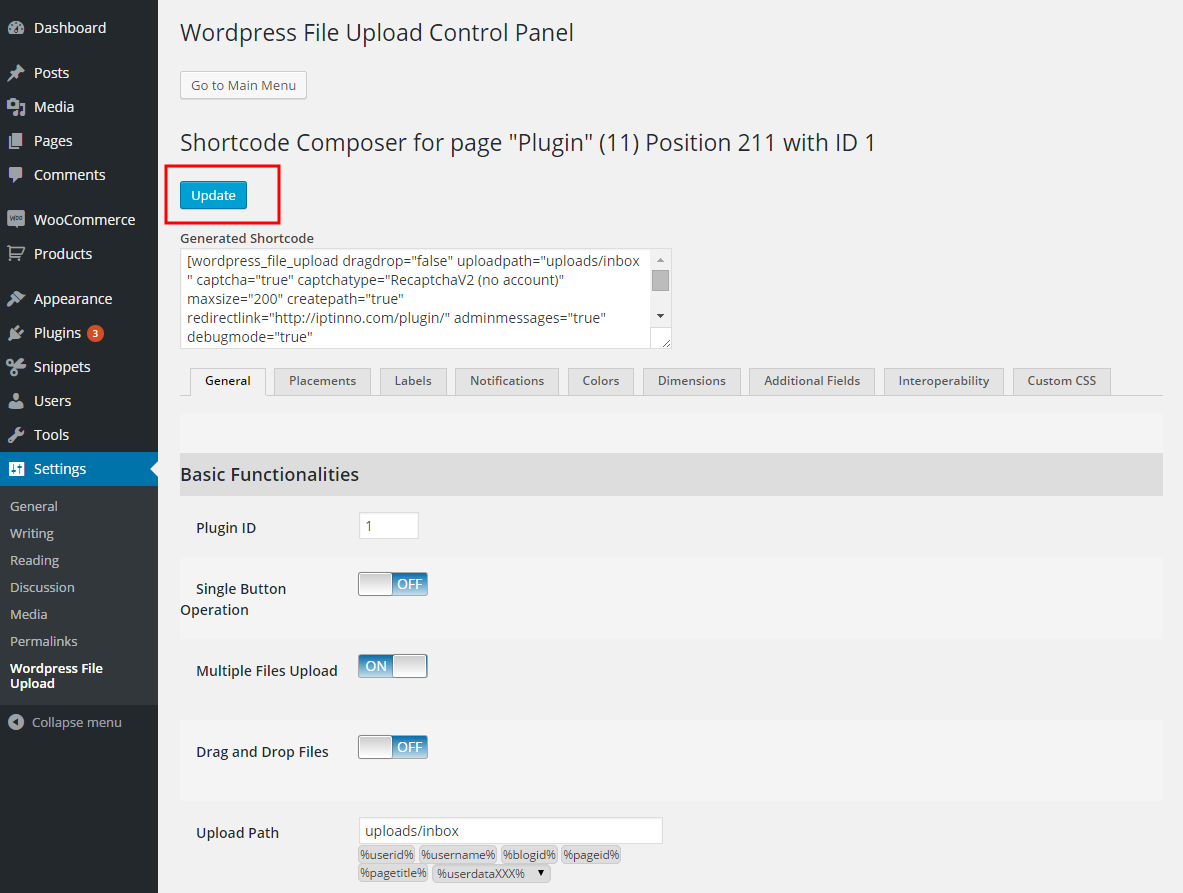
- Press Update. Nothing is applied to the upload form until you do.
From the page or post
- Open the page or post holding the upload form in your browser.
- Hover over the form. A yellow pencil appears in its top-left corner:
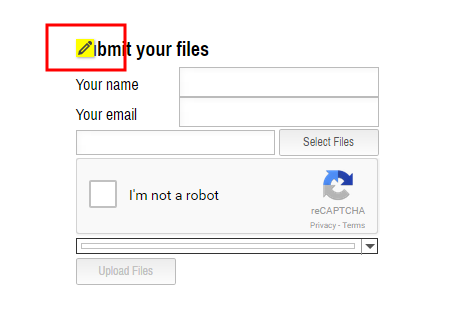
- Click the pencil. The Shortcode Composer opens in a new tab or window — if nothing happens, allow pop-ups for the site in your browser.
- Make your changes and press Update. The page holding the form reloads to show them.
- Carry on editing, or close the composer.
If you have further questions, please contact us.
The Iptanus team
Hi,
I am trying to use the upload for .stl files. Are these accepted? I am getting a warning message saying …’not uploaded’. Other file types work fine.
Thanks.
Hi Nickolas,
Is there a way to assign permissions to uploaded files (e.g. 775) when Folder Access Method is set to normal (ftp is not working for me)? Thanks
Hi! When I wrote that I can’t get the plugin to work. It let’s me browse to a file, but cannot hit submit. You asked which theme was used. I sent the page address and the theme.
But you didn’t answer anymore.
Can any of your plugins (simple or Pro) work on the page? If so, please write further instructions.
Thanks!
Hi Inna, I apologize for not answering promptly. Please note that the plugin has been developing for more than 8 years. It is compatible with 99% of themes, but not 100%. This is because some themes do not follow WordPress standard instructions on how to render posts and pages. The theme you mention, Gadgetry, has not been tested with the plugin and I never had any other customer using it. I checked it and seems to be an old theme. What was the last time that was updated?
Nickolas