

Since version 3.5.0, the Iptanus File Upload plugin can send uploads to Dropbox. Files that your visitors upload are transferred to a Dropbox account of your choosing.
Connecting a Dropbox account
First you need to name the account and give the plugin access to it. Open the plugin’s Settings in the Dashboard:

The Dropbox Uploads option shows as not activated, with a Press here button beside it. Pressing it opens a new page telling you that “Iptanus File Upload Plugin would like access to the files and folders in your Dropbox“. If you are not signed in to Dropbox, you are asked to sign in first.
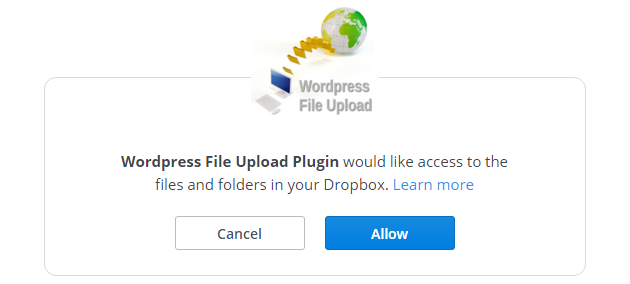
Press Allow. The next screen shows a code:

Copy that code into the text box of the Dropbox Uploads option in the plugin’s Settings:

Press Finish. The option now reads “Activated”:

Sending a form’s uploads to Dropbox
Add the attribute dropbox=”true” to the plugin’s shortcode. If you prefer the Shortcode Composer, open the Interoperability tab and switch on Upload to Dropbox:

The two further options
- The destination folder — the dropboxpath attribute, or Dropbox Path in the composer. A folder that does not exist yet is created when the first file arrives. With no path set, files go to the root of the account.
- The local copy — the dropboxlocal attribute, set to “delete” or “keep”, or Local File Action in the composer. It decides whether the file stays on your own server once it has been transferred.
Once Dropbox uploads are switched on, every file uploaded through the plugin is transferred to the account you connected.
If you have questions, problems or suggestions, please contact us.
The Iptanus team
Nickolas
How do I find my Dropbox path please?
Regards
Peter
When you open the visual editor of the shortcode and go to Interoperability tab you will see the Dropbox settings. In there you will see Dropbox Path. An empty path means that files will be uploaded to the root of the Dropbox account.
Nickolas
Hi Nickolas
I am setting up File Uploader Pro on Staging but I am unable to activate the Dropbox functionality. Looking at the debug log, I see;
10-Jan-2018 08:56:48 UTC] PHP Fatal error: Call to a member function get_page_permastruct() on null in /home/content/n3pnexwpnas02_data02/69/41206369/html/wp-includes/link-template.php on line 357
[10-Jan-2018 12:14:40 UTC] PHP Warning: file_get_contents(https://services2.iptanus.com/wp-admin/admin-ajax.php): failed to open stream: Connection refused in /home/content/n3pnexwpnas02_data02/69/41206369/html/wp-content/plugins/wordpress-file-upload-pro/lib/wfu_functions.php on line 2802
[10-Jan-2018 12:23:21 UTC] PHP Warning: file_get_contents(https://services2.iptanus.com/wp-admin/admin-ajax.php): failed to open stream: Connection refused in /home/content/n3pnexwpnas02_data02/69/41206369/html/wp-content/plugins/wordpress-file-upload-pro/lib/wfu_functions.php on line 2802
[10-Jan-2018 12:23:21 UTC] PHP Catchable fatal error: Argument 1 passed to Kunnu\Dropbox\Dropbox::__construct() must be an instance of Kunnu\Dropbox\DropboxApp, null given, called in /home/content/n3pnexwpnas02_data02/69/41206369/html/wp-content/plugins/wordpress-file-upload-pro/extensions/wfu_dropbox/_wfu_dropbox.php on line 23 and defined in /home/content/n3pnexwpnas02_data02/69/41206369/html/wp-content/plugins/wordpress-file-upload-pro/vendor/dropbox2/kunalvarma05/dropbox-php-sdk/src/Dropbox/Dropbox.php on line 103
On the Status page
Edition Professional
Version 4.2.0 Iptanus Services Server is unreachable. This may cause problems in some plugin functions. Please contact info@iptanus.com for details.
Server Environment 64bit (Your server supports files up to 1 Exabyte, practically unlimited)
Hi, when you go to Main tab of the plugin’s area in Dashboard, do you see any message like “Iptanus server unreachable”?
Regards
Nickolas
Hi
I see the Iptanus server unreachable, in Settings and WordPress File Upload screen
Gerard
Hi, please read this article for resolution.
Regards
Nickolas