

Since version 3.5.0, the Iptanus File Upload plugin can send uploads to Dropbox. Files that your visitors upload are transferred to a Dropbox account of your choosing.
Connecting a Dropbox account
First you need to name the account and give the plugin access to it. Open the plugin’s Settings in the Dashboard:

The Dropbox Uploads option shows as not activated, with a Press here button beside it. Pressing it opens a new page telling you that “Iptanus File Upload Plugin would like access to the files and folders in your Dropbox“. If you are not signed in to Dropbox, you are asked to sign in first.
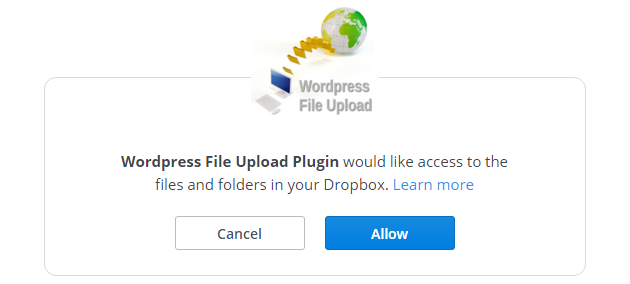
Press Allow. The next screen shows a code:

Copy that code into the text box of the Dropbox Uploads option in the plugin’s Settings:

Press Finish. The option now reads “Activated”:

Sending a form’s uploads to Dropbox
Add the attribute dropbox=”true” to the plugin’s shortcode. If you prefer the Shortcode Composer, open the Interoperability tab and switch on Upload to Dropbox:

The two further options
- The destination folder — the dropboxpath attribute, or Dropbox Path in the composer. A folder that does not exist yet is created when the first file arrives. With no path set, files go to the root of the account.
- The local copy — the dropboxlocal attribute, set to “delete” or “keep”, or Local File Action in the composer. It decides whether the file stays on your own server once it has been transferred.
Once Dropbox uploads are switched on, every file uploaded through the plugin is transferred to the account you connected.
If you have questions, problems or suggestions, please contact us.
The Iptanus team
Hi Nikolas,
Is there anything else we can try to do?
Thanks,
Evan
Hi Nikolas,
I have just purchased the pro version and activated Dropbox Uploads. The files are uploaded to the WordPress server but for some reason they are not uploaded to Dropbox, and remain stuck in the Pending File Transfers queue. Can you help? The short code I’m using is:
[wordpress_file_upload multiple=”false” uploadpath=”uploads/bienalxvi” fitmode=”responsive” duplicatespolicy=”maintain both” redirect=”true” redirectlink=”https://www.caappr.org/eventos/bienal-xvi-subir-archivos-exitoso/” placements=”title/filename+selectbutton+uploadbutton/progressbar/subfolders/userdata/message” uploadtitle=”Subir Archivos XVI Bienal” selectbutton=”Seleccionar Archivo” uploadbutton=”Subir Archivo” successmessage=”Archivo %filename% subido exitosamente” warningmessage=”Archivoi%filename% subido exitosamente pero con alertas” errormessage=”Archivo %filename% no pudo ser subido” waitmessage=”Subiendo archivo %filename%” dropbox=”true” dropboxpath=”/BienalXVI_Test”]