
This article explains which file types the Iptanus File Upload plugin allows, and how to change the list.
Why the error appeared
After updating the plugin to version 3.9.0 or newer, many users started seeing an error that had not appeared before: “Upload failed! File not allowed.“
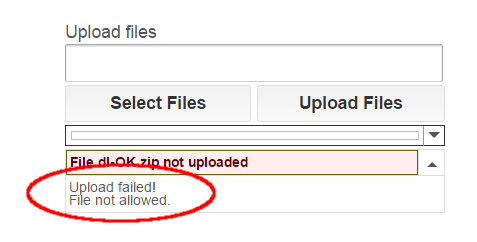
It is caused by the plugin’s security policy, which changed in that version to restrict the file types that can be uploaded. The point of the change is to protect sites better against attacks such as arbitrary file uploads.
The whitelist
Under the new policy, the default *.* in the plugin’s Allowed File Extensions option no longer permits every file type — only a specific set. Administrators are strongly encouraged to define their own list of allowed extensions rather than leave the generic *.* in place.

The blacklist
Even with a list of your own, not every extension on it is guaranteed to work. The plugin also keeps a list of forbidden extensions, and it checks that list first: anything on it is rejected whatever your settings say.
Check an extension
To find out whether an extension is allowed by default, needs adding to Allowed File Extensions, or is forbidden outright, type it below and press Check.
Hi,
I’m using the free version and considering pro version I have this issue:
I can’t modify the allowed types. If I try for example: “*.*,*.png” or even: “*.png”. It still gives me error.
Also the “CHECK” button on this page doesn’t do anything.
Kind regards
B
Hi, first of all there is no need to declare *.png, because it is included in the allowed file extensions already (the *.* pattern). So, the problem is somewhere else. Do the files you are trying to upload contain more than one dot (.) in their filenames?
Regards
Nickolas
You’re right, thanks, didn’t notice the dots in filename.
Thanks for the fantastic plugin!
Managed to get most of my files to work once added to the whitelist, but having trouble with *.ld files (lower case “L”). These are files spooled by race telemetry applications and sensors. We can upload them in .rar format but any particular reason these are natively prevented?
Hi, .ld files are included in the blacklist, because they may contain executable code. Nevertheless there is a way to add an exclusion. Please do the following:
1. Go to Dashboard / Settings / WordPress File Upload / Hooks and add a new Hook.
2. Give it any title you want.
3. Put the following code in the Code box:
global $wfu_extension_blacklist;if ( isset($wfu_extension_blacklist["ld"]) ) unset($wfu_extension_blacklist["ld"]);
4. Set Status to Active and Save.
5. Add extension *.ld to the list of Allowed File Extensions of the shortcode.
You are done.
Regards
Nickolas
Is Hooks and add new a new Hook only availble in the PRO?
I’d like to gain access to the blacklist on my server.
I’m trying to add a .ino file or a .py file
Thanks
Yes Hooks is a feature of the Pro version, however you can gain access to the blacklist and customize it by adding the following code at the end of functions.php file of your theme:
global $wfu_extension_blacklist;if ( isset($wfu_extension_blacklist["ino"]) ) unset($wfu_extension_blacklist["ino"]);
if ( isset($wfu_extension_blacklist["py"]) ) unset($wfu_extension_blacklist["py"]);
Regards
Nickolas
I tried adding to the end of functions.php of my theme, and also at the wfu_functions.php. But still the upload of exe and zip files comes back with “not allowed”.
What am I missing (free version of the plugin)
global $wfu_extension_blacklist;
if ( isset($wfu_extension_blacklist[“exe”]) ) unset($wfu_extension_blacklist[“exe”]);
if ( isset($wfu_extension_blacklist[“zip”]) ) unset($wfu_extension_blacklist[“zip”]);
Sorry, I forgot to mention, you also need to set Allowed File Extensions in the shortcode accordingly, e.g. it should be *.*, *.exe, *.zip
Nickolas
I get “Hook has been saved but cannot be activated because the code contains errors. Please check its syntax.” error when adding this into a new hook. What gives?
Go to Settings and activate option “ModSecurity Restrictions”. Then go back to the hook and activate it. Maybe this will fix the problem.
Nickolas