
Iptanus File Upload
Front-end file uploads for WordPress
Let visitors upload files from any page, post or sidebar widget — into your Media library, or straight to Dropbox, Google Drive, OneDrive, Amazon S3 or an FTP server.

What it does
A form on any page
One shortcode, or a Gutenberg block. Add your own fields, filter by size, extension or user role, and run several forms in the same post.
Files go where you need
The Media library, a NextGEN gallery, an FTP server or a cloud account. Large files upload in chunks, past the server’s own limit.
You see what arrives
A file browser and activity log in the dashboard, email notifications on upload, and a viewer your logged-in users can see too.
What it looks like
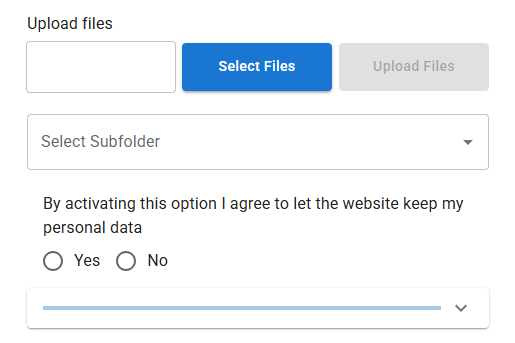
Set-up and reference
- Install the plugin with the WordPress auto-installer, or download the .zip file from wordpress.org and install it from the Plugins section of your Dashboard.Or copy the
wordpress_file_uploaddirectory into thewp-content/pluginsdirectory of your site yourself. - Activate the plugin from the Plugins section of your Dashboard.
- For an upload form, go to Dashboard / Settings / Iptanus File Upload and follow the instructions in Uploader Instances.
[wordpress_file_upload]Or put the shortcode straight into the contents of any page. - For a list of uploaded files, follow the instructions in Uploaded File List Instances instead.
[wordpress_file_upload_browser]Or put the shortcode straight into the contents of any page.
- Open the page in your browser and you will see the upload form, or the list of files.
- View what has arrived from the Uploaded Files item in the Dashboard menu.
- Change the upload directory, or any other setting, from the small edit button at the top-left corner of the upload form.It opens the plugin options in a new window. If nothing appears, allow pop-up windows for your site.
- Full documentation of the plugin options is in the Options section below.
A handy Getting Started guide can be found here.
You can download the free version of the plugin by pressing the FREE version button below, or you can go for the professional version that offers multiple file uploads, captcha and much more by pressing the PRO version button. Professional licences are one-off, and their updates never expire.
The plugin offers many options for the two shortcodes, so that they can be tailored to any requirements. These options are available in the following links:
From version 2.4.1 filters and actions are supported in order to allow programmers to integrate Iptanus File Upload plugin with other plugins, extend its capabilities or perform advanced operations.
A detailed list of the plugin’s filters and actions can be found in this article.
The plugin is translated in the following languages:
- Portuguese
- kindly provided by Rui Alao
- German
- French
- kindly provided by Thomas Bastide of omicronn.fr
- Serbian
- kindly provided by Andrijana Nikolic of webhostinggeeks.com
- Dutch
- kindly provided by Ruben Heynderycx
- Chinese
- kindly provided by Yingjun Li
- Spanish
- kindly provided by Marton
- Italian
- kindly provided by Enrico Marcolini marcuz.it
- Polish
- Swedish
- kindly provided by Leif Persson marcuz.it
- Persian
- kindly provided by Shahriyar Modami chabokgroup.com
- Greek
Translations in other languages are more than welcome!.
The plugin requires to have Javascript enabled in your browser. For Internet Explorer you also need to have Active-X enabled.
Please note that old desktop browsers or mobile browsers may not support all of the above features. In order to get full functionality use the latest versions of browsers, supporting HTML5, AJAX and CSS3.
You can read the Privacy Policy and Terms of Service of the plugin in the following links:
You can also read the Google Drive Privacy Policy and Terms of Service of the plugin in the following links:
Release notes
153 versions · 847 changes
What changed in each version. Grouped by major release — these entries carry no dates.
- Fixed bug where emails could not be sent after the release of the previous version.
- Verified compatibility with latest 7.0 WordPress version.
- Added uploadid length check in wfu_ajax_action_send_email_notification().
- Added wfu_params_*, wfu_gst_* and wfu_userstate_* in periodical cleanup.
- Added Transient Options section in Maintenance Actions tab.
- Fixed SQL injection issue CVSS 9.3 from Patchstack.
- Fixed File Overwrite Race Condition when uploading files with the same filename concurrently.
- Verified compatibility with latest 6.9 WordPress version.
- Fixed bug where a file could not be downloaded from Uploaded Files Dashboard menu.
- Fixed double-escaped HTML code of text when Pro version is deactivated. Pro
- Added support for FTP over TLS (FTPS) uploads.
- Fixed bug where the visual editor of the file viewer could not be invoked when there was no upload form on the same page. Pro
- Fixed bug where alt text and description in NGG image was not stored because NGG modified its API. Pro
- Fixed bug where the visual editor threw warnings for not finding personaldata when Personal Data were deactivated from the plugin's Settings in Dashboard.
- Fixed bug where a fatal error was thrown when updating the Pro version of the plugin and the extensions had to be reloaded. Pro
- Fixed bug where Link and Remotelink columns showed HTML code instead of links, due to excessive escaping. Pro
- Modified Messenger activation workflow due to withdrawal of Send To Messenger plugin from Meta. Pro
- Corrected bug where the upload form visual editor was not opening when Material UI theme was active.
- Corrected bug where notification emails were not sent when Material UI theme was active.
- Updated vendor libraries.
- Removal of Post Method setting from free version.
- Removal of curl_exec, file_get_contents and sockets from wfu_get_request() and wfu_post_request() of free version.
- Improvements on how AJAX endpoint is provided.
- Corrections to "Requires at least" value.
- Replacement of eval() in minification function.
- Corrected warning where translatable constants where loaded before the plugin textdomain was loaded.
- Further security improvements for compliance with wordpress.org.
- Added translation for all backend of the plugin.
- Modified plugin code so that all echoed variables to HTML are escaped.
- Modified code so that all input is sanitized, including all $_SERVER, $_COOKIE and $_SESSION input.
- Plugin name changed to Iptanus File Upload.
Every version on one page, without JavaScript: the full changelog.
Free and Pro
The free version does not expire and is not a trial. Pro adds nineteen features. The full comparison and the price are on one page.
This plugin has single-handedly taken my site down for the second time in a week. This time it is creating an error that makes js not work: TypeError: undefined is not an object (evaluating ‘jQuery.datepicker.setDefaults’)”
When i make the plugin inactive the site works normally.
Hi Sarah, this is a Javascript error, I am not sure if this error takes your site down. Perhaps there is something more. Is there a way of reproducing the error?
It doesn’t take my site completely down, but it makes all javascripts not function. Maybe it’s a conflict with a different plugin. Really no way to reproduce it, my site’s JS works when the plugin is inactive.
Can you identify which plugin it is conflicting with?
I keep getting the message “File not allowed.” What is the correct syntax for allowing files in the Allowed File Extensions field. The ? does not load… thx
Hi, what files are you trying to allow?
Nickolas
Can the pro version require user to be logged into the wordpress system? If so is there a way to attach the username to the file when it is uploaded or can it create a folder for the person.
Also If i wanted a admin to view files from all users who uploaded anything can i do this?
Hi Eric,
1. you can configure the plugin so that only logged users can see it. The plugin has a visual editor for easy configuration. You can unclick “Include Guests” from Upload Roles and Upload Users options.
2. You can create a separate folder for each user based on its username by setting Upload Path to be /uploads/%username% (or anything similar). The variable %username% will be replaced by the current user’s username. You can also put the username in the filename, however this is more complicated.
3. The admin can view from the View Log tab in plugin’s section in Dashboard all the files that have been uploaded. There is also a File Browser which displays all the files.
Nickolas